
Advanced memory protection for HP ProLiant 300 series G4 servers

prevents the user from having to enter RBSU to disable POST speedup, reboot to allow POST to test
the memory, and then once again entering RBSU to enable POST speedup. However, just as with the
POST memory test, the system must be configured for Advanced ECC to allow the Online Spare bank
to be tested.
Once the memory has been tested, enable Online Spare:
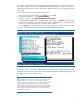
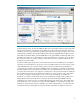
1. At the prompt at the end of POST, press the F9 key to enter RBSU.
2. From the RBSU main menu, select System Options.
3. Using the arrow key, select Advanced Memory Protection.
4. To activate Online Spare Memory, highlight Online Spare and press the Enter key. Online Spare
is selected as soon as Enter is pressed. (The default option is Advanced ECC, providing maximum
memory size for applications that require a large memory footprint.)
5. Press the F10 key to exit RBSU and the server will automatically re-boot. Upon reboot, the system
will be in Online Spare mode if supported by the installed DIMM configuration.
As the server reboots subsequent to enabling Online Spare Memory, the following message displays:
Advanced Memory Protection Mode: Online Spare with Advanced ECC xxxxMB System Memory and
xxxxMB memory reserved for Online Spare
Note
RBSU will allow the user to configure an AMP mode for which the current
DIMM configuration does not support, but it will display a warning
message when making the selection. If the user enables an AMP mode not
supported by the current DIMM configuration, the system will boot in
Advanced ECC mode (though the system will still be configured for Online
Spare mode) on the next reboot and an error message will be displayed
during POST indicated the desired AMP mode is not supported by the
current DIMM configuration.
7