
ProLiant ML310 Generation 2 Server Maintenance and Service Guide
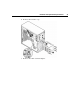
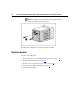
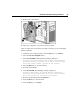


Table Of Contents
- HP ProLiant ML310 Generation 2 Server Maintenance and Service Guide
- Notice
- Contents
- Illustrated parts catalog
- Removal and replacement procedures
- Required tools
- Safety considerations
- Preparation procedures
- Bezel
- Hot-plug SCSI hard drive
- Hot-plug SATA/SAS hard drive
- Access panel
- PCI expansion board
- Battery
- DIMM
- Air baffle
- Fan
- Power supply
- Processor assembly
- Diskette drive
- CD-ROM/DVD-ROM drive
- Installing a full-height tape drive option
- Full-height tape drive
- Power button/LED board
- Hard drive (non-hot-plug)
- Hot-plug SCSI backplane
- Hot-plug SATA or SAS backplane
- System board
- Server cabling
- Diagnostic tools
- Server component identification
- Front panel components
- Front panel LEDs and buttons
- Rear panel components
- Rear panel LEDs and buttons
- System board components
- System board LEDs
- System LEDs and internal health LED combinations
- SCSI IDs
- Hot-plug SCSI hard drive LEDs
- Hot-plug SCSI hard drive LED combinations
- Hot-plug SATA or SAS IDs
- SATA or SAS hard drive LEDs
- Fan locations
- Specifications
- Acronyms and abbreviations
- Index

Removal and replacement procedures 43
6. Remove the system board.
To replace the component, reverse the removal procedure.
After you replace the system board, you must re-enter the server serial number
and the product ID.
1. During the server startup sequence, press the F9 key to access RBSU.
2. Select the Advanced Options menu.
3. Select Serial Number. The following warning is displayed:
Warning: The serial number should ONLY be modified by
qualified service personnel. This value should always
match the serial number located on the chassis.
4. Press the Enter key to clear the warning.
5. Enter the serial number.
6. Select Product ID. The following warning is displayed.
Warning: The Product ID should ONLY be modified by
qualified service personnel. This value should always
match the Product ID located on the chassis.
7. Enter the product ID and press the Enter key.
8. Press the Esc key to close the menu.
9. Press the Esc key to exit RBSU.