
ProLiant ML150 Server NOS Installation and Software Guide



Installing SCO OpenServer 5.0.7
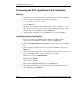
d. Select Media Images for the installation media, and click Continue.
e. Type the directory path to the VOL.000.000 file.
For example, if you copied the file to /tmp in step 3, type
/tmp.
Click OK.
f. Click Install to start the installation.
g. After the installation is complete, click OK, and then exit
custom.
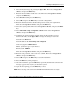
6. To add the adapters:
a. Run netconfig.
b. Click Hardware > Add new LAN adapter, and click Continue.
c. Select SCO TCP/IP and click Add to enter the SCO TCP/IP Configuration.
d. Enter the information and click OK.
By default, the driver automatically detects the line speed and duplex mode.
If you want to modify any of these settings, select Advanced Options and
set the speed and duplex modes.
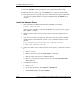
e. Click OK on the Configure Networking product window.
f. Exit netconfig and.
g. Click Yes to re-link the kernel.
You need to press the Y key and then the Enter key to confirm. Then press
the Y key and then the Enter key again to re-build the kernel environment.
h. Press the Enter key to continue.
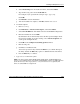
7. Type
reboot to reboot the system.
NOTE: This driver supports 82544, 82540, 82545, 82546, 82541, and 82547 MAC based
devices. Legacy adapters based on the 82542 and 82543 MAC controllers are NOT supported
by this driver. If any of these legacy devices, or any other devices are recognized by this
driver, it is advised NOT to configure them.
HP ProLiant ML150 Server NOS Installation and Software Guide 12-5
HP CONFIDENTIAL
Writer: Pauline Tsai File Name: m-ch12 Installing SCO OpenServer 5.0.7.doc
Codename: Stone Soup Part Number: 343330-002 Last Saved On: 11/10/03 12:34 PM