
Supporting HP TeachNow, v 1.1 update
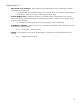

37
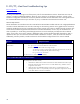
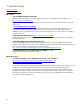
Section B, Check server
Summary: Need to check the following services are available on this network:
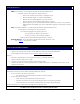
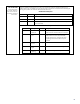
DHCP (from environment) – can check from the HP st574x thin client fail to PXE boot screen
o If no DHCP response is received by the TC, things to check are:
o Make sure the switch they are connected to is configured correctly.
o Make sure the DHCP domain isn’t “locked” to MAC addresses.
o Make sure there are available addresses in the scope reservation.
o Make sure there are no firewalls blocking DHCP requests / responses.
o Make sure Spanning Tree, in any switches/Routers between DHCP server and clients, is set to port-fast or
disabled (port-fast recommended). If user does not understand the suggestion, forward request to ProCurve
support.
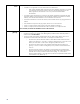
PXE (from TeachNow installation) – can check from the HP st574x thin client fail to PXE boot screen
o If no PXE response is received by the TC, things to check are:
Can a network PC plugged into this jack ping the server?
If not, go to section D, diagnose connectivity issues.
If it can, go to section C, check TeachNow installation.
Make sure there are no firewalls blocking DHCP requests / responses.
HP Image Manager – You can check this from the HP st574x thin client “fail to boot” screen.
Go to section C
, check TeachNow installation
Section C, Check TeachNow installation
You need to login to the server and check that the various TeachNow components are installed and operating correctly.
o Login to server using either server console or remote desktop from Windows XP/Vista/Win7/2003/2008
o If remote desktop connection doesn’t work, go to section D, diagnose connectivity issues
.
Check that:
o PXE server is started using the “Services” applet (name of service is “HP IM PXE/TFTP Server”)
o HpImSvc is started using the “Services” applet
o IIS service is running, and configured correctly using the manage IIS applet
o FlexNet license server service is running. Name of service is “HP IM License Service” or HP TeachNow License Service” or “HP
TeachNow License Service”
Section D, Diagnose connectivity issues
Connect a keyboard, mouse and screen to the TeachNow server and pull up the network config window.
Check that there is at least one network interface card (NIC) enabled, and connected.
• If there are no NICs in the network config window:
o This suggests there is a potential hardware issue. Refer to ISS (ML110 support).
• If NIC is shown as “not connected”
o Check connections from the NIC all the way back to the switch
o If this does not resolve the issue, connect a switch directly to the ML110 with a known good cable
o If the NIC still shows as “not connected”, potential hardware issue. Refer to ISS (ML110 support).
If the NIC indicates that it is “connected” perform the diagnostics in the following section.
You MUST resolve any NIC issues before continuing with this section.