
Supporting HP TeachNow, v 1.1 update

36
E: 2LS/TC, client boot troubleshooting tips
Back to Appendices
Back to document index.
Providing a bootable OS image is one of the primary roles for the HP TeachNow solution. Client boot issues are not
common in a stable, established installation. However, minor change in an installation’s hardware, network, of HP
TeachNow configuration can affect the connectivity between the clients and the TeachNow server. These guidelines are
the recommended framework that you can follow as you try to isolate the cause behind a client boot issue.
Network Requirements:
The HP TeachNow server hardware must be connected to the HP TeachNow student machines with a highspeed Ethernet
connection. The HP TeachNow server must be connecting into the switching network with a gigabit network connection,
and all the student devices must be connected to the switching network with at least a 100Mbit/second connection. The
switch network should be engineered such that the flow from the HP TeachNow server to any one student device is as
short as possible (i.e. avoids being routed through more than two switch interfaces), and there must be no Ethernet
“Hubs” in the system, since “Hubs” operate in half-duplex mode, with the net effect that traffic directed to a “Hub” is
repeated on all its port. All connections should be made with Ethernet “switches”, which do not have this behavior.
Additionally, wherever possible, switches and network cards should be configured with “flow control” enabled.
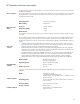
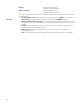
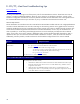
Question Responses/action
Have Thin Clients booted off this
system before?
Yes: Do any Thin Clients boot off this image?
Yes – go to section A
, check MAC addresses of allowed clients
No: Have any changes been made to the image recently?
Yes: Revert to an earlier, working image to see if that resolves the issue. Provide HP
3LS with a list of changes that may have broken the image.
No – go to section B
, check server
No: Go to section C
, check TeachNow installation.
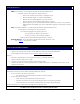
Section A, Check MAC addresses of allowed clients
Use the TeachNow Admin UI to look at the list of allowed clients. (Click “Show Details” for the client on
the Desktops tab in the Admin console.)
• HP TeachNow identifies the client hardware based on the MAC address that the Admin inputs
during the initial class setup. If there is an error in a MAC address entry, TeachNow will not
recognize the client device.
• Unlike thin clients with embedded operating systems, there is no OS-based agent on the
streaming clients. There is no way to identify a unit as an appropriate “target” device until the
correct MAC address is entered in the database.