
HP ProLiant Lights-Out 100 Remote Management User Guide for HP ProLiant ML110 G5 Servers

Using LO100 39
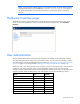
Option User Operator
Application License Key No No
Security Settings No No
Changing user settings through a web browser
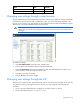
The User Administration screen displays user information, enables you to modify user settings, and enable
or disable user accounts. The first user is a FIXED NULL value. You cannot change the properties of the
first user or use it to log in with. Only the first two users (after the fixed null value) are enabled for login by
default. Users can only be enabled from the browser interface.
WARNING: Do not disable all user accounts. If you disable all user accounts you will not be
able to log in to LO100. HP recommends always leaving at least one user with administrative
privileges.
To modify user settings:
1. Click User Administration on the main menu navigation bar.
2. Enter the password in the Password and Confirm Password fields.
3. Select the User Privilege level from the dropdown list. See "User administration (on page 38)" for
more information on user privileges and access rights.
4. Change the user name, if needed.
5. Click the Set button to save the changes.
Changing user settings through the CLP
The first user is a fixed null value. Customizable users start at user2 and continue through user16. You can
only enable users for log in through the browser. However, you can change the values through any
connection.
1. Log in to the CLP as described in the "Logging in to LO100 (on page 21)" section.
2. At the command prompt, enter cd map1/accounts.