
Intel Matrix Storage Manager User's Manual

Intel® Matrix Storage Console
R
10 Intel® Matrix Storage
Console
10.1 Description
The Intel® Matrix Storage Console is a Windows*-based application that provides management
capabilities and detailed status information for storage devices and RAID arrays.
10.2 User Interface Modes
The Intel® Matrix Storage Console provides device information using one of two views: Basic
and Advanced.
Basic mode displays the status of the hard drives and an illustration of the current RAID volume.
This mode is visual and uses animations to communicate the current status and any user actions.
Basic mode is the default view of the user interface.
Advanced mode displays a combination of logical and physical views of the hard drives and any
supported RAID volumes that may be present. The logical view provides details on the arrays and
volumes in the RAID configuration. The physical view provides details on the hard drives and
how they are connected to each other.
The user can switch between the Basic and Advanced modes by selecting the appropriate option
in the View menu. If the user is in Basic mode, they can also click on the Switch to Advanced
Mode view button if it is present.
10.3 Create RAID Volume
The Intel® Matrix Storage Manager offers the ability to create a RAID volume. This option
should be used if you are using a third bootable device such as an IDE or SCSI hard drive – in
addition to using two or more Serial ATA hard drives. One benefit of using a third bootable
device and creating a RAID volume is that the operating system is not located on the RAID
volume. Should something happen to the RAID volume, the operating system should not be
impacted.
Note: The ‘Create RAID Volume’ option is not selectable unless a third bootable device (such as an
IDE or SCSI hard drive) is installed in the system – in addition to using two or more Serial ATA
hard drives.
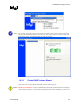
To create a RAID volume, click on ‘Actions’ in the Intel® Matrix Storage Console file menu and
then select ‘Create RAID Volume’ as illustrated below:
58 User's Manual