
Intel Matrix Storage Manager User's Manual
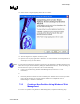

“RAID Ready”
R
1. Complete one of the following tasks, then proceed with the remaining steps:
a) Right-mouse click 'My Computer', select 'Manage'. In the Computer Management program
window, left-mouse click 'Disk Management' in the program tree on the left (located under
‘Storage’ subsection).
or
b) Within the Control Panel (Start/Control Panel), double-click 'Administrative Tools'. In the
window that appears, double-click 'Computer Management'. In the Computer Management
program window, left-mouse click 'Disk Management' in the program tree on the left (located
under ‘Storage’ subsection).
2. Maximize the Computer Management program window for easier viewing.
3. In the Computer Management program window, you should see your RAID volume
represented as a physical disk. Notice that the RAID volume size is the size of the Serial
ATA disks combined. At this point, you should see the partitions within the RAID volume
that were originally on the single disk you used as your source. After the partitions, you
should see a gray area labeled 'Free Space'. This area must be partitioned and formatted
before it may be used.
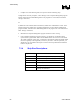
7.3.4 Strip Size Descriptions
Strip Size Settings Descriptions
4KB For specialized usage models requiring 4KB strips
8KB For specialized usage models requiring 8KB strips
16KB Best for sequential transfers
32KB Good for sequential transfers
64KB Good general purpose strip size
128KB Best performance for RAID 0 or RAID 10 for most
desktops and workstations
52 User's Manual