
Intel Matrix Storage Manager User's Manual

Intel® Matrix Storage Manager Option ROM
R
4.3 RAID Volume Actions
4.3.1 RAID Volume Creation
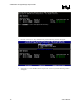
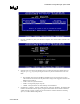
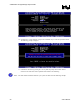
1. Select option 1 Create RAID Volume and press the <Enter> key.
2. Type in a volume name and press the <Enter> key, or simply press the <Enter> key to accept
the default name.
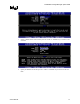
3. Select the RAID level by scrolling through the available values (RAID 0, RAID 1, RAID 5,
RAID 10) by using the <Ç> or <È> keys.
4. Press the <Enter> key after you have selected the desired RAID level.
5. Unless you have selected RAID 1, select the strip value for the RAID array by scrolling
through the available values by using the <Ç> or <È> keys and pressing the <Enter> key.
The available values range from 4 KB to 128 KB in power of 2 increments. The strip value
should be chosen based on the planned drive usage. The default selection is 128 KB for
RAID 0 and RAID 10 volumes, and 64KB for RAID 5 volumes.
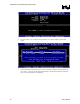
6. Press <Enter> to select the physical disks. This will bring up another dialog.
7. Select the appropriate number of hard drives by scrolling through the list of available hard
drives by using the <Ç> or <È> keys and pressing the <Space> key to select the drive.
When you have finished selecting hard drives, press the <Enter> key.
8. Select the volume size.
9. At the Create Volume prompt, press the <Enter> key to create the volume. Confirm this
selection by pressing the <Y> key after the prompt.
10. Scroll to option 4 Exit and press the <Enter> key to exit the RAID Configuration utility.
Confirm the exit by pressing the <Y> key.
Note: To change any of the information before the volume creation has been confirmed, you must exit
the Create Volume process and restart it. Press the <Esc> key to exit the Create Volume process.
4.3.2 RAID Volume Creation Example
Note: The following procedure should only be used with a newly-built system or if you are reinstalling
your operating system. The following procedure should not be used to migrate an existing system
to RAID 0. If you wish to create matrix RAID volumes after the operating system software is
loaded, they should be created using the Intel® Matrix Storage Console in Windows.
During the Power-On Self Test (POST), the following message will appear for a few seconds.
User's Manual 15