
HP ProLiant ML110 G2 Lights-Out 100 Remote Management Processor User Guide


Using Integrated Lights-Out 100 25
4.
Press the down arrow (↓) key to scroll to IPMI. Press the Enter key.
5. Press the down arrow (↓) key to scroll to USI and VSI configuration. Press the Enter key.
6. Press the down arrow (↓) key to scroll to Virtual Floppy, and set it to Disabled.
7. Press the F10 key to save the changes and exit Setup.
User administration
The user password is stored in nonvolatile memory and can be changed through a Web browser
("Changing the password through a Web browser" on page 25) or the CLP ("Changing the password
through the CLP" on page 25).
Changing the password through a Web browser
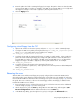
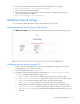
1. Click Administration on the main menu navigation bar.
2. Enter the password in the Password and Confirm Password fields.
3. Select the User Privilege level from the dropdown menu.
4. Change the user name if needed.
5. Click the Set button to save the changes.
Changing the password through the CLP
Passwords are case-sensitive and can contain up to 16 characters. To change the user password through
the CLP:
1. Log in to the CLP as described in the "Logging in to the remote management processor (on page
16)" section.
2. At the command prompt, enter cd map1/accounts.
3. Select a user by entering cd user1 or cd user2.
4. Enter a new user name by entering set username=<new username>. For example:
/./map1/accounts/user1/> set username=testuser1