
ProLiant DL760 Generation 2 Server Maintenance and Service Guide

I/O Module Removal and Replacement Procedures
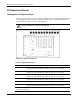
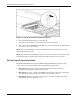
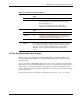
Table 6-2: PCI Hot Plug LEDs and Button
Amber LED OK to
Open
Slot Condition and Status
Off Slot does not require attention.
1
On Slot requires attention. There might be a problem with the
slot, the PCI board, or the driver. Check the green LED
before opening the slot.
Refer to the IML and/or the PCI Hot Plug software
application for a description of the problem indicated.
Green LED OK to
Open
Slot Condition and Status
On No Power is applied to the slot.
Blinking No Power to the slot is being turned off or on. This process
might take several minutes. Do not open the slot release
lever until the green LED is completely off.
2
Off Yes You can replace or remove the board in this slot only.
3
PCI Hot Plug
Button
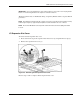
Each PCI Hot Plug button is used to activate or deactivate its associated
PCI Hot Plug slot. Activating or deactivating a PCI Hot Plug slot can also
be accomplished through the operating system PCI Hot Plug software
application. For more information about the PCI Hot Plug software
application, refer to the “PCI Hot Plug Operating System Support”
section.
PCI Hot Plug Operating System Support
Software support is an integral part of PCI Hot Plug. HP, in partnership with Microsoft,
Novell, and SCO/Caldera UNIX, has developed PCI Hot Plug software support for each
operating system.
You can use either the PCI Hot Plug button on the server or the operating systems’ PCI Hot
Plug software to control the PCI Hot Plug slots. You can use the software to indicate that you
want to replace an expansion board in the hot-plug slot or configure a board that you have
already added to the system. The PCI Hot Plug software also allows you to enable or disable
specific system slots.
For more information, refer to the HP ProLiant DL760 Generation 2 Server User Guide.
HP ProLiant DL760 Generation 2 Server Maintenance and Service Guide 6-13