
Deployment of SuSE Linux Enterprise Server 7 for Itanium Processor Family (IPF) on Compaq ProLiant DL590/64 Servers


Deployment of SuSE Linux Enterprise Server 7 for Itanium Processor Family (IPF) on Compaq ProLiant DL590/64 Servers 9
164J-0102A-WWEN
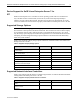
• Enter Hostname and Nameserver information.
Note: You can create the name, server list, and domain server list using information
provided by your network administrator.
• Click the Next button.
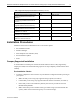
30. Click the Finish installation button unless you need to configure the second NIC.
31. Click the Yes button to save your network configurations. Click the OK button.
Note: On the Configure Hardware screen, you have the option to configure other
components, such as printers, modems, ISDN adapters, or sound cards.
32. Click the Finish button to complete the installation.
Post-Installation Updates
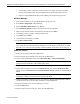
33. Modify /boot/elilo.conf to include the following line in the global section:
append=“swiotlb=32768”
Note: To boot the system faster, you can change the default timeout from 80 seconds to a
lower value.
SaX2
34. At the linux login prompt, type root and press Enter.
35. Type your password when prompted.
36. At the linux:~# prompt, type sax2 press Enter.
Note: This step takes a few minutes. It may appear that the system is down, but everything is
operational.
37. Click the Click to select button and select Change Configuration.
38. On the Mouse Settings screen, click the Next button.
39. Select keyboard settings and click the Next button.
40. Select Graphics Device and click the Next button.
Important: Make sure Mach64 XL or XC is listed as the board name.
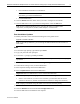
41. On the Desktop Setup screen, highlight resolution and click the Properties button.
• Select a new resolution. (To select a new resolution, you must first click the current
selection to de-select it, and then click the desired selection to change the resolution.)
Note: Compaq recommends using the default color selection of 65536 [16-bit].
42. Click the Monitor tab. Select vendor and name selection, then click the OK button.
43. Click the Finish button and click the Save Configuration button.
44. Click the Yes button and installation will complete.