
Deployment of SuSE Linux Enterprise Server 7 for Itanium Processor Family (IPF) on Compaq ProLiant DL590/64 Servers


Deployment of SuSE Linux Enterprise Server 7 for Itanium Processor Family (IPF) on Compaq ProLiant DL590/64 Servers 8
164J-0102A-WWEN
20. Confirm installation information and click the Next button. At this time, you could save the
settings to floppy disk to create a kickstart file.
21. Select Yes-install upon receipt of the warning message.
Note: This step may take several minutes since several hundred software packages are being
installed on the hard drive. While you are waiting, you might want to use the commands in
Table 4.
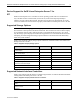
Table 4. Command List
Command Description
Ctrl+Alt+F2 Shell Prompt
Ctrl+Alt+F4 Activity Log
Ctrl+Alt+F7 GUI
Ctrl+Alt+F8 Error Log
22. Click OK upon receipt of the following message:
The boot sector has been written to disk. Now booting your system.
23. At the next prompt, press Enter to commit the installation. Remove all installation media.
24. While restarting the system, insert SuSE CD-ROM #2 into the CD-ROM drive.
25. Select EFI Shell and press Enter.
26. At EILO boot prompt, type linux swiotlb=32768 and press Enter.
Note: This step may take several minutes since the remaining software packages are being
installed on the hard drive.
27. Configure your monitor.
• Select NoXII for vendor, then click the Next button.
• At the prompt, click the Continue button.
28. Click the No button when prompted to view the Installation Log File.
29. On the Configuration screen, click the Configure Hardware button to configure printers,
network, modems, ISDN adapters, and sound.
• Click the Network button on the System Component Configuration screen.
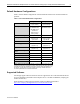
• Select the first active network interface controller by clicking the first Active Card
button. Available selections are listed in Table 5.
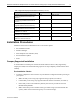
Table 5. Network Selections
Selection Port Comments
Active Card 1
Active Card 2
Manual Card Setup Use in case the OS
does not recognize a
NIC.
• Configure DHCP or Static.