
Clustering Tips for Microsoft Windows Advanced Server, Limited Edition on Compaq ProLiant DL590/64 Server


Clustering Tips for Microsoft Windows Advanced Server, Limited Edition on Compaq ProLiant DL590/64 Server 7
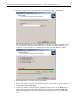
6. Enter the computer name of the first node to be added to the cluster. Click Next.
The wizard will analyze the system configuration to determine if a cluster is feasible. If there
are issues that arise during the analysis, the user may need to cancel the installation and
troubleshoot. Once the analysis is complete and no issues arise, click Next to continue.
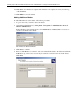
7. Enter an IP address for the new cluster. Click Next.
8. Enter a user name and password for the Cluster Service account. The user name must have
Domain Admin rights. Click Next.
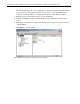
9. On the next window, verify the cluster configuration. The user may use the Back button to
make changes if necessary. The Quorum drive may be changed by clicking the Quorum
button and selecting the desired drive. Click Next. The cluster will now be created on the
node.