
ProLiant DL580 Generation 3 Server Maintenance and Service Guide
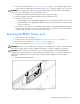
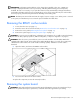
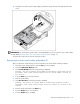
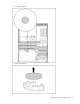
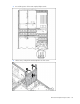
Table Of Contents
- HP ProLiant DL580 Generation 3 Server Maintenance and Service Guide
- Notice
- Contents
- Illustrated parts catalog
- Removal and replacement procedures
- Required tools
- Safety considerations
- Preparation procedures
- Removing the front bezel
- Removing a media drive blank
- Removing a media drive
- Removing the processor module
- Removing a processor
- Removing a PPM
- Removing a PCI latch
- Removing a PCI retaining clip
- Removing the PCI-X Hot Plug basket
- Removing a non-hot-plug expansion board
- Removing the PCI-X Hot Plug mezzanine option
- Removing the PCI Express mezzanine option
- Recovering data from the BBWC
- Removing the BBWC battery pack
- Removing the BBWC cache module
- Removing the system board
- Removing the system battery
- Removing the media board
- Removing the SCSI backplane
- Removing the power backplane
- Removing the memory backplane
- Removing a hard drive blank
- Removing a hot-plug SCSI hard drive
- Removing a hot-plug SAS hard drive
- Removing the SAS-SATA hard drive cage
- Removing the SAS-SATA backplane
- Removing a PCI-X Hot Plug expansion board
- Removing a power supply blank
- Removing a redundant hot-plug power supply
- Replacing hot-plug fans
- Memory overview
- Diagnostic tools
- SmartStart software
- SmartStart Scripting Toolkit
- HP Instant Support Enterprise Edition
- Option ROM Configuration for Arrays
- HP ROM-Based Setup Utility
- ROMPaq utility
- System Online ROM flash component utility
- Integrated Management Log
- Integrated Lights-Out technology
- Automatic Server Recovery
- HP Systems Insight Manager
- HP Insight Diagnostics
- USB support
- Troubleshooting the system using port 85 codes
- Server component identification
- Front panel components
- Front panel LEDs and buttons
- Memory board components and LEDs
- Processor module LEDs
- Rear panel components
- Rear panel LEDs and buttons
- Power supply LEDs
- System board components
- DIMM slot locations
- SCSI IDs
- Hot-plug SCSI hard drive LEDs
- Hot-plug SCSI hard drive LED combinations
- SATA or SAS IDs
- SATA or SAS hard drive LEDs
- SAS and SATA hard drive LED combinations
- Fan locations
- Hot-plug fan LEDs
- BBWC LEDs
- Server cabling
- Specifications
- Acronyms and abbreviations
- Index
Removal and replacement procedures 31
2.
Power down the failed server ("Power down the server" on page 16). If any data is trapped in the
cache module, the amber LED on the module ("BBWC LEDs" on page 87) blinks every 15 seconds.
CAUTION: Do not detach the cable that connects the battery pack to the cache module. Detaching the
cable causes any unsaved data in the cache module to be lost.
3. Transfer the hard drives from the failed server to the recovery server station.
4. Remove the BBWC cache module and battery pack from the failed server.
5. Perform one of the following:
• Install the BBWC into an empty BBWC DIMM socket on the system board of the recovery server.
• Install the BBWC into an empty BBWC DIMM socket on any Smart Array 641 or 642 controller
in the recovery server.
6. Power up the recovery server. A 1759 POST message appears, stating that valid data was flushed
from the cache. This data is now stored on the drives in the recovery server. You can now transfer
the drives (and controller, if one was used) to another server.
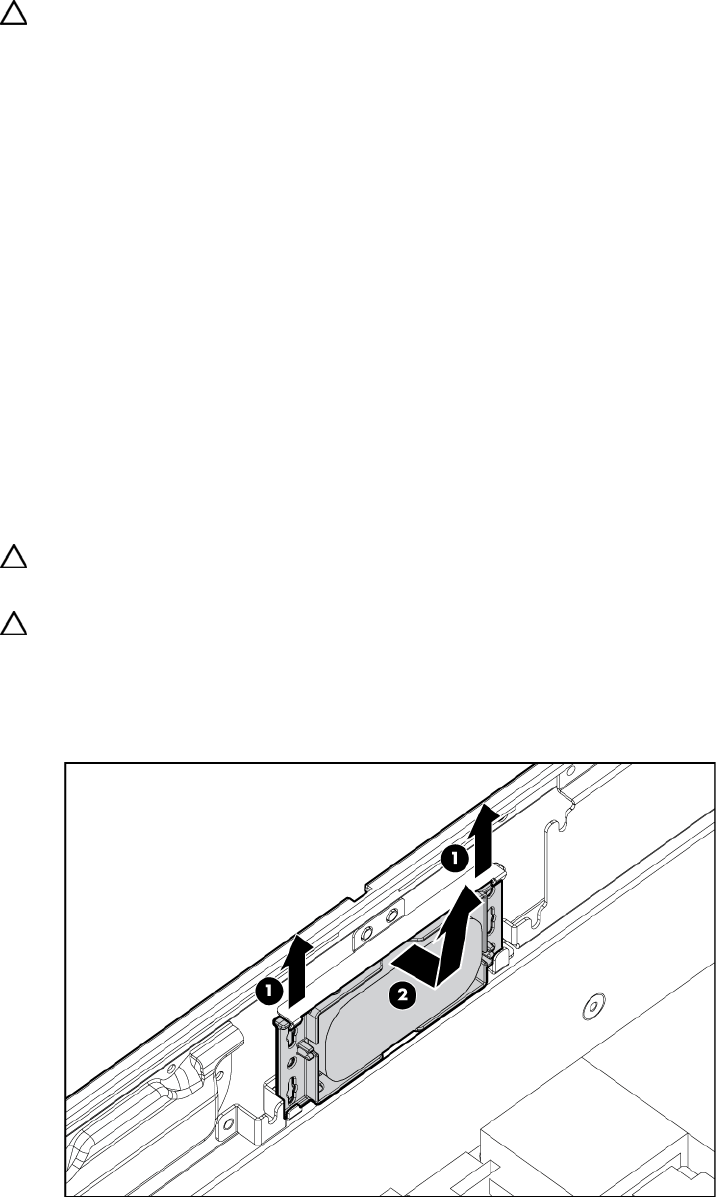
Removing the BBWC battery pack
1. Power down the server (on page 16).
2. Extend or remove the server from the rack ("Remove the server from the rack" on page 16).
3. Remove the access panel ("Removing the access panel" on page 17).
4. Remove the system cage ("Removing the system cage" on page 17).
CAUTION: To prevent a server malfunction or damage to the equipment, do not add or remove the battery
pack while an array capacity expansion, RAID level migration, or stripe size migration is in progress.
CAUTION: After the server is powered down, wait 15 seconds and then check the amber LED before
unplugging the cable from the cache module. If the amber LED blinks after 15 seconds, do not remove the
cable from the cache module. The cache module is backing up data, and data is lost if the cable is
detached.
5. Remove the BBWC battery pack.
To replace the component, reverse the removal procedure.