
ProLiant DL580 Setup and Installation Guide

C-8 Compaq ProLiant DL580 Server Setup and Installation Guide
Compaq Confidential – Need to Know Required
Writer: Cynthia Dresden Project: Compaq ProLiant DL580 Server Setup and Installation Guide Comments: Troubleshooting information by Susana
Weinstein Salazar
Part Number: 159213-003 File Name: k-appc Troubleshooting.doc Last Saved On: 4/5/01 2:37 PM
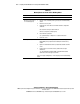
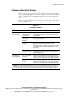
Table C-6
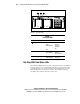
Memory/Processor Status LED is Blinking Amber
See “Front Panel LEDs” in Appendix D.
Possible Reasons Next Steps
Memory is not present or
is not seated properly.
1. Place the server in standby mode by pressing the Power On/Standby
switch.
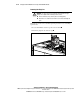
2. Remove the access panel.
3. Verify that your server adheres to minimum hardware configuration
standards.
Are at least two memory modules installed?
Are these components seated properly?
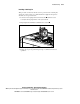
4. Reseat all memory modules.
See “System Memory” in Chapter 2 for complete instructions.
5. Restart the server.
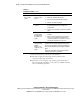
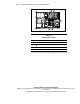
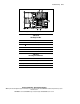
Memory has failed. 1. If the LED indicator is blinking amber, check the Internal Diagnostic
Display (IDD) on the peripheral board to identify the failed memory
module.
2. Replace the indicated failed memory module indicated and restart the
server.
3. Continue this process until the memory status LED is no longer
illuminated.
See “Internal Diagnostic Display (IDD)” in Appendix D for detailed
information on the memory/processor LED.
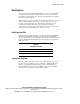
Refer to “Properly Seating Devices” in the Compaq Servers Troubleshooting
Guide.