
ProLiant DL580 Setup and Installation Guide

C-6 Compaq ProLiant DL580 Server Setup and Installation Guide
Compaq Confidential – Need to Know Required
Writer: Cynthia Dresden Project: Compaq ProLiant DL580 Server Setup and Installation Guide Comments: Troubleshooting information by Susana
Weinstein Salazar
Part Number: 159213-003 File Name: k-appc Troubleshooting.doc Last Saved On: 4/5/01 2:37 PM
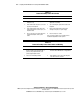
Table C-3
Power On/Standby Status LED is Amber
See “Front Panel LEDs” in Appendix D
Possible Reasons Next Steps
1. Power switch was not fully depressed on
initial power-up.
1. Try pressing the power switch until it is fully
depressed. Press firmly.
2. Power switch cable may not be connected
properly to the backplane.
2. Try reconnecting the power switch cable to the
backplane.
3. Power supply problem exists. The power
supply may have bent connector pins, or it
may have failed.
3. Check power supply insertion and look for
missing or bent pins on a power supply.
4. There is a broken connection between the
system and backplane via the power
cables.
4. Reconnect any loose cables.
Refer to “Power Problems” in the Compaq Servers
Troubleshooting Guide for further options.
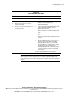
Table C-4
Power On/Standby Status LED is Amber and Blinking
Possible Reasons Next Steps
1. An interlock problem may exist, caused by
improper seating of the memory board, a
processor, the peripheral board, or the
power supply backplane board.
1. Check for an interlock problem. Refer to
“Interlock Status LED Indicators” in Appendix D.
2. There is an overheating condition. 2. Power down the server, remove the AC power
cord, and let the unit cool down.