
Microsoft®Windows® Small Business Server 2008 Getting Started



Getting started 5
The server starts several times.
The screen is black for several seconds while the server restarts.
The following message appears momentarily, depending on your server: Preparing your
desktop.
If your server shipped with installation media, insert the media, and then restart your server. Follow
the manufacturer's instructions to add drivers during installation.
2. Continue installing and customizing your server.
a. Install any recommended updates.
b. To customize your server, enter your company information.
NOTE: Depending on your hardware configuration, you might need 30 minutes or more to
customize the installation.
You can use your server now. To finish setting up your server, perform the Getting Started Task list in
the Windows® SBS Console.
For more information about getting started with Windows® SBS, see the Microsoft® website
(http://go.microsoft.com/fwlink/?LinkID=106133
).
If you purchased your server preinstalled from an HP OEM, not-preinstalled or preinstalled using a
Reseller Option Kit (ROK), use the media provided to start the installation. For adding drivers during
installation, see the HP Small Business Server 2008 planning and deployment with HP ProLiant servers
white paper (http://h71028.www7.hp.com/ERC/downloads/4AA2-1328ENW.pdf
).
Configuring your server and your network
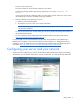
To help you finish configuring your network, the Windows® SBS Console Home page lists the Getting
Started Tasks. You should finish these tasks as soon as possible after you install Windows® SBS 2008.