
Ultra-Dense Server Deployment in Racks

Compaq Ultra-Dense Server Deployment in Compaq Racks 76
128H-0400A-WWEN
4.6 Cable Installation
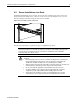
Follow the procedure detailed in the Compaq ProLiant DL360 Setup and Installation Guide or in the
Sliding Rails and Cable Management Solution for ProLiant DL360 Servers Guide to properly secure the
cables on the fixed or sliding rail cable tray, respectively.
All cables need to be snugly routed on the rack frame rail using the D-Ring cable hooks. The rear door
should close easily over the cables. If additional space is required for the cables at the rear of the rack
then use the rack extension or the bustle kit.
4.6.1. Power Cord Connection
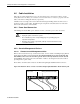
After making sure that the PDU power outlets are not live, connect the power cords to the servers.
WARNING: To reduce the risk of electric shock or damage to the equipment:
• Unplug the power cord from the system.
• Do not disable the power cord grounding plug. The grounding plug is an
important safety feature.
• Plug the power cord into a grounded (earthed) electrical outlet that is easily
accessible at all times.
4.6.2. Console Management Choices
4.6.2.1. Remote Console Management Cables
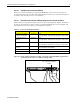
Refer to the ProLiant DL360 Setup and Installation Guide for more details on installing Compaq Remote
Insight Lights-Out Edition in ProLiant DL360. Note that ProLiant DL360 provides an internal cable
that eliminates the need for the external loop-back cable for the keyboard/mouse and the external
power adapter. This greatly reduces the total number of cables to be managed and saves the trouble of
providing 42 more power outlets.
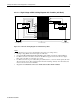
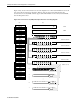
There will be one CAT5 cable connected to the Remote Insight Lights-Out Edition RJ-45 connector.
Figure 4-20. Network cables connection to Remote Insight Lights-Out Edition RJ-45 network jacks
Remote Console
Management Network Cable
Remote Insight Lights-Out
Edition card