
Configuring a Pre-eXecution Environment (PXE) using Red Hat Linux 7.0 on Compaq ProLiant Servers

Configuring a Pre-eXecution Environment (PXE) using Red Hat 7.0 Linux on Compaq ProLiant Servers 5
14K2-0301A-WWEN
Software Installation
The following instructions specify paths and filenames that are correct in most cases. It is
possible, with different versions of Red Hat and different installations that the user will have to
adjust the directions for these differences.
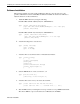
1.
Install the PXE software by doing the following.
Insert Red Hat 7.0 Disk 2 (Binary CD) into CD-ROM drive:
Type [mount /dev/cdrom /mnt/cdrom]
[rpm –Uvh /mnt/cdrom/RedHat/RPMS/pxe-0.1-20-i386.rpm]
[umount /mnt/cdrom]
Insert Red Hat 7.0 Disk 4 (Source CD) into CD-ROM drive:
Type [mount /dev/cdrom /mnt/cdrom]
[rpm –Uvh /mnt/cdrom/SRPMS/pxe-0.1-20-scr.rpm]
[umount /mnt/cdrom]
2. Add the following lines to /etc/services:
Type [mtftp 1759/udp]
[pxe 67/udp]
[pxe 4011/udp]
3.
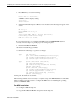
Add these lines to /etc/xinetd.d before “includedir /etc/xinetd.d:
Type [service mtftp]
[{]
[socket_type=dgram]
[wait=yes]
[user=root]
[server=/usr/sbin/in.mtftpd]
[server_args=/tftpboot]
[}]
4. Start the PXE Deamon on reboots in level 2, 3, 4
Type [cd /etc/init.d/]
[chkconfig –-level 234 pxe on]
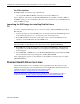
5. Add these lines to the end of your /etc/rc.d/rc.local file:
Type [route add –host 255.255.255.255 eth0]
[route add –net 224.0.0.0 netmask 224.0.0.0 eth0]
6. Test the PXE server by restarting the server. Upon restart, boot up a PXE enabled client.
The client’s PXE boot process should receive an IP address from DHCP.