
ProLiant DL320 Setup and Installation Guide
3-34 Compaq ProLiant DL320 Setup and Installation Guide
Compaq Confidential – Need to Know Required
Writer: Gilbert Saldivar Project: Compaq ProLiant DL320 Setup and Installation Guide Comments:
Part Number: 203836-001 File Name: d-ch3 Installing Hardware Options.doc Last Saved On: 8/23/00 4:00 PM
Installing External Storage Devices
You can connect optional mass storage devices to the Compaq
ProLiant DL320 server through optional SCSI controller or array controller
expansion boards. For more information about cabling external storage
devices, see Chapter 5, “Cabling Guidelines.”
For additional information on configuring your server, refer to the
Documentation CD shipped with your server.
Installing ATA Hard Drives
Use the following procedure to install ATA hard drives into the empty hard
drive bay of an ATA-model ProLiant DL320 server.
1. Prepare your ATA hard drives by performing the following steps:
a. Review “Guidelines for ATA Hard Drives” earlier in this chapter to
ensure proper jumper settings and hard drive configuration.
b. Refer to the documentation that ships with your hard drive option kit
to ensure that your ATA hard drives are set to Cable-Select mode.
NOTE: Steps 2 through 4 apply only to servers that have already been mounted in a rack.
2. Back up any data residing on any hard drives currently configured to
your server.
3. Power down the server. See “Powering Down the Server” earlier in this
chapter.
4. Remove the server from the rack. See “Removing the Server from the
Rack” in Chapter 4, “Installing the Server.”
NOTE: If you install the rack management solution option (ball-bearing slide rails and a
cable management system), you can perform many hardware procedures without
removing the server from the rack. For more information, see “Other Options” earlier in
this chapter.
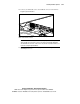
5. Remove the access panel. See “Removing the Access Panel” earlier in
this chapter.
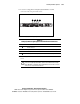
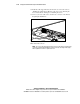
6. Identify the tray into which you intend to install your ATA hard drive.
See “Hard Drive Identification Numbers” earlier in this chapter.