
ProLiant DL320 Setup and Installation Guide
E-2 Compaq ProLiant DL320 Setup and Installation Guide
Compaq Confidential – Need to Know Required
Writer: Gilbert Saldivar Project: Compaq ProLiant DL320 Setup and Installation Guide Comments:
Part Number: 203836-001 File Name: m-appe Troubleshooting.doc Last Saved On: 8/23/00 4:21 PM
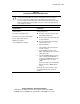
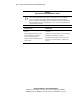
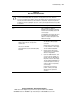
When the Server Does Not Start
Follow the sequence of steps below when the server does not start:
1. Verify that the computer and monitor are plugged into a working outlet.
2. Make sure your power source is working properly:
G Use the Power On/Off LED to check the status of the power source.
See “Front Panel LED Indicators” in Appendix D for the location of
the Power On/Off LED.
G Was the Power On/Off switch pressed firmly?
Refer to the “Power Source” section in the Compaq Servers
Troubleshooting Guide for details on what else to check.
3. If the system does not complete the Power-On Self-Test (POST) or start
loading an operating system, refer to the “General Loose Connections”
section in the Compaq Servers Troubleshooting Guide.
NOTE: If the server is power cycling, verify that the system is not restarting because of an
Automatic Server Recovery (ASR) power-up caused by another problem. Check Compaq
Insight Manager™ for notification of this event. See Chapter 6 for more information.
4. Restart the server.
5. Check for the following “normal power-up sequence” to verify that your
system meets the minimal hardware requirements and is powered up
under normal operation:
a. The front panel Power On/Off LED turns green.
b. The fans start.
c. The server ROM initializes the server in the following sequence:
NOTE: If a monitor is connected to the server, status information is displayed on the
screen.
G Video initialization. The Compaq initialization screen is displayed.
G Processor initialization
G Memory test
G Memory initialization
G Diskette drive
G SCSI devices
G Option ROM