
ProLiant DL320 Generation 3 Server User Guide
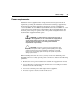
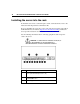
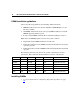
Table Of Contents
- HP ProLiant DL320 Generation 3 Server User Guide
- Notice
- Contents
- Server component identification
- Server operations
- Powering up the server
- Powering down the server
- Preparation procedures
- Extending the server from the rack
- Removing the access panel
- Installing the access panel
- Removing the PCI riser board assembly
- Installing PCI riser board assembly
- Removing the hot-plug SATA backplane
- Removing the fan assembly
- Installing the fan assembly
- Server setup
- Hardware options installation
- Server cabling
- Server software and configuration utilities
- Battery replacement
- Troubleshooting
- Electrostatic discharge
- Regulatory compliance notices
- Regulatory compliance identification numbers
- Federal Communications Commission notice
- Declaration of conformity for products marked with the FCC logo, United States only
- Modifications
- Cables
- Mouse compliance statement
- Canadian notice (Avis Canadien)
- European Union regulatory notice
- Japanese notice
- BSMI notice
- Korean notice A&B
- Laser compliance
- Battery replacement notice
- Taiwan battery recycling notice
- Power cord statement for Japan
- Server specifications
- Technical support
- Acronyms and abbreviations
- Index
40 HP ProLiant DL320 Generation 3 Server User Guide
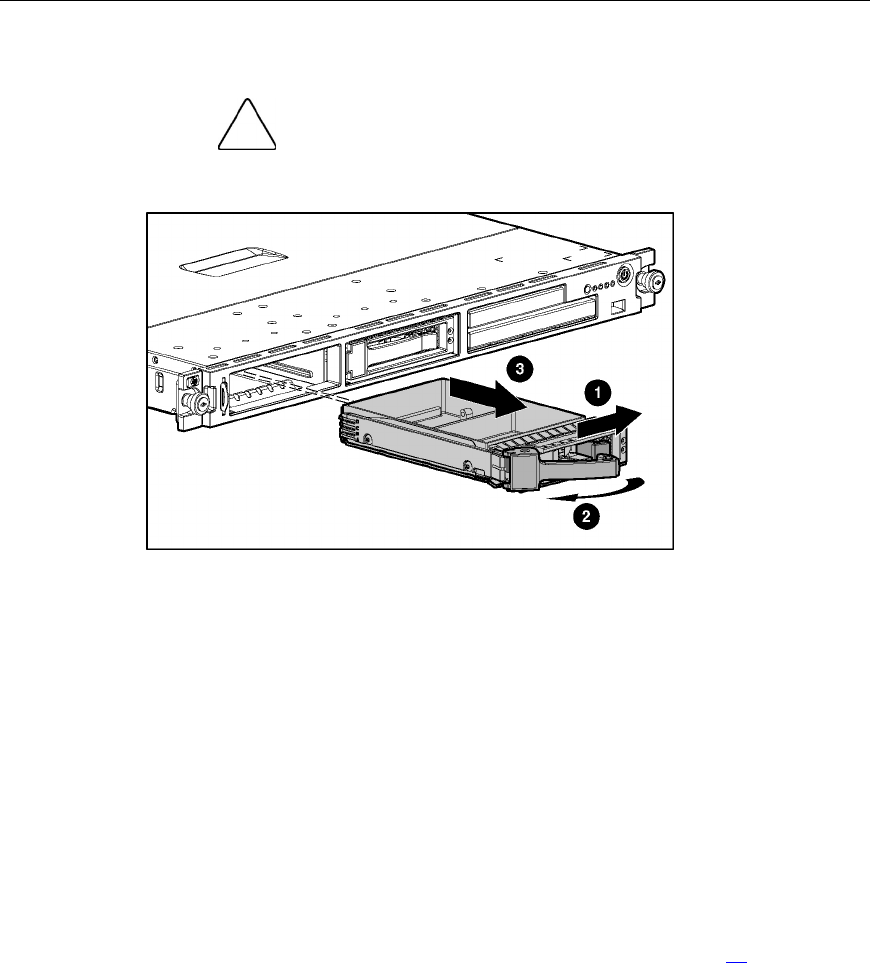
Removing a hard drive blank
CAUTION: To prevent improper cooling and thermal damage,
do not operate the server unless all bays are populated with either a
component or a blank.
Hard drive guidelines
When adding hard drives to the server or drive enclosure, observe the following
general guidelines:
• If only one hard drive is used, install it in the bay with the lowest number.
• Drives must be the same capacity to provide the greatest storage space
efficiency when drives are grouped together into the same drive array.
IMPORTANT: When SATA hard drives are installed, SATA LED
functionality and SATA hot-plug capability are not supported currently.
Installing a SATA hard drive
1. Power down the server ("Powering down the server" on page 19).
2. Remove the existing hard drive blank or hard drive from the drive bay.
3. Install the hard drive.