
ProLiant DL320 Generation 3 Server User Guide
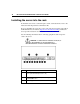
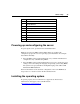
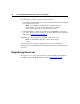
Table Of Contents
- HP ProLiant DL320 Generation 3 Server User Guide
- Notice
- Contents
- Server component identification
- Server operations
- Powering up the server
- Powering down the server
- Preparation procedures
- Extending the server from the rack
- Removing the access panel
- Installing the access panel
- Removing the PCI riser board assembly
- Installing PCI riser board assembly
- Removing the hot-plug SATA backplane
- Removing the fan assembly
- Installing the fan assembly
- Server setup
- Hardware options installation
- Server cabling
- Server software and configuration utilities
- Battery replacement
- Troubleshooting
- Electrostatic discharge
- Regulatory compliance notices
- Regulatory compliance identification numbers
- Federal Communications Commission notice
- Declaration of conformity for products marked with the FCC logo, United States only
- Modifications
- Cables
- Mouse compliance statement
- Canadian notice (Avis Canadien)
- European Union regulatory notice
- Japanese notice
- BSMI notice
- Korean notice A&B
- Laser compliance
- Battery replacement notice
- Taiwan battery recycling notice
- Power cord statement for Japan
- Server specifications
- Technical support
- Acronyms and abbreviations
- Index
Server setup 35
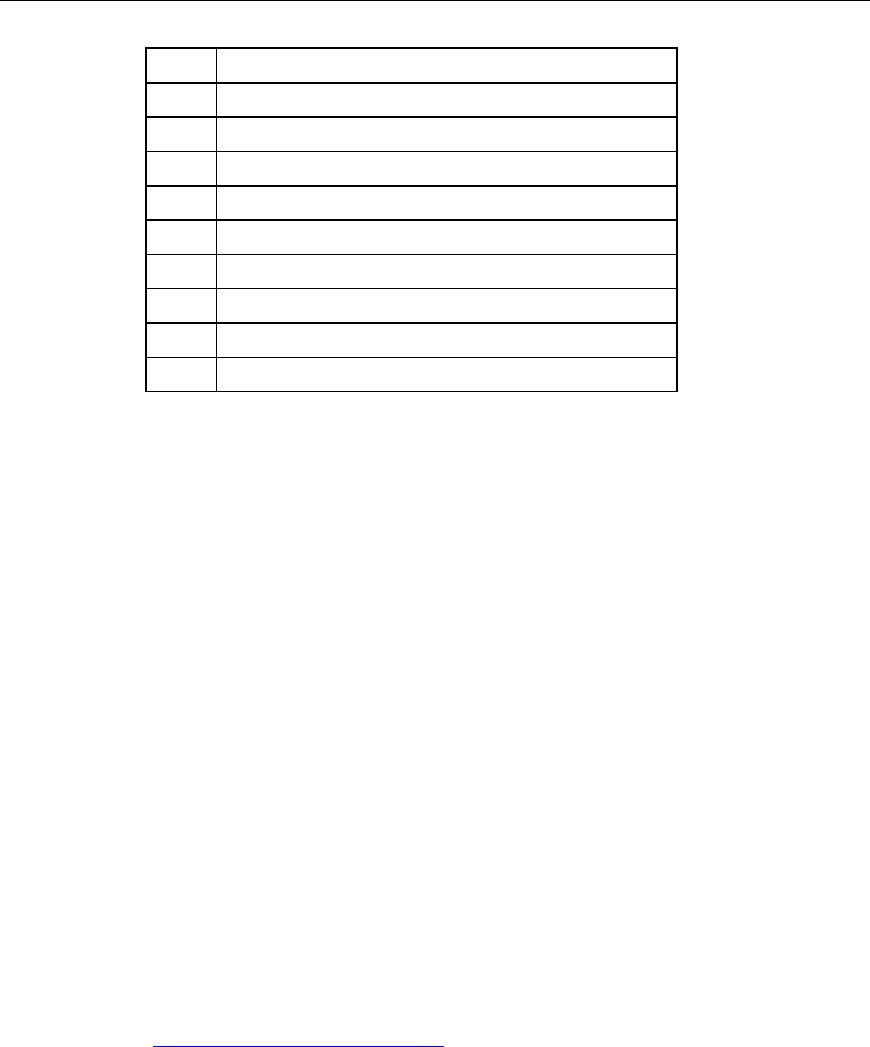
Item Description
4 UID button/LED
5 10/100/1000 NIC 1
6 10/100/1000 NIC 2
7 iLO management port
8 Serial connector
9 Mouse connector
10 Keyboard connector
11 Video connector
12 USB connectors
Powering up and configuring the server
To power up the server, press the Power On/Standby button.
While the server boots, RBSU and the ORCA utility are automatically
configured to prepare the server for operating system installation. To configure
these utilities manually:
• Press the F8 key when prompted during the array controller initialization to
configure the array controller using ORCA.
• Press the F9 key when prompted during the boot process to change the server
settings, such as the settings for language and operating system, using RBSU.
The system is set up by default for the English language and a Microsoft®
Windows® 2000 installation.
For more information on the automatic configuration, refer to the ROM-Based
Setup Utility User Guide located on the Documentation CD.
Installing the operating system
To operate properly, the server must have a supported OS. For the latest
information on OS support, refer to the HP website
(http://www.hp.com/go/supportos
).