
HP ProLiant DL180 Server Software Configuration Guide

Contents 11
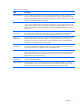
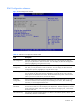
Table 4 Advanced Settings
Field Description
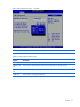
CPU Configuration Use this screen to select options for the CPU Configuration Settings. Use the up and down
<Arrow> keys to select an item. Use the <Plus> and <Minus> keys to change the value of the
selected option. A description of the selected item appears on the right side of the screen. The
settings are described on the following pages.
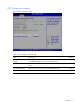
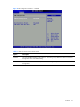
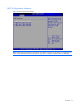
IDE Configuration Use this screen to select options for the IDE Configuration Settings. Use the up And down
<Arrow> keys to select an item. Use the <Plus> and <Minus> keys to change the value of the
selected option. A description of the selected item appears on the right side of the screen. The
settings are described on the following pages. An example of the HDD Configuration screen is
shown below.
IO Device
Configuration
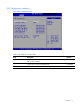
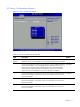
Use this screen to select options for IO device configuration. Use the up and down <Arrow>
key to select an item. Use the <Plus> and <Minus> keys to change the value of the selected
option. The settings are described on the following pages. The screen is shown below.
Event Log
Configuration
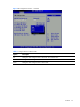
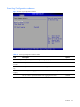
From this configuration screen, press <Enter> to select the submenu for viewing the event log,
marking events as read, or clearing the event log. Use the up and down <Arrow> keys to
select an item. Use the <Plus>and <Minus> keys to change the value of the selected option.
The settings are described on the following pages.
AHCI
Configuration
Select AHCI Configuration and press <Enter> to access the submenu. You can use the submenu
to view the contents of AHCI. Use the up and down <Arrow> keys to select an item. Use the
<Plus> and <Minus>keys to change the value of the selected option.
IPMI Configuration Select this option and press <Enter> to access the sub menu to view the contents of IPMI. A
delay may be noticed when selecting IPMI -- this is due to the time for retrieval of sensor data.
Use the up and down <Arrow> keys to select an item. Use the <Plus> and <Minus>keys to
change the value of the selected option.
Remote Access
Configuration
Press Enter to access the related submenu. For details on the submenu options, see the “Remote
Access Configuration submenu”
USB Configuration Select and press <Enter> to reach sub menu for the USB controller and USB 2.0 controller.
Use up and down <Arrow> keys to select an item.use the <Plus>and <Minus> keys to change
the value of the selected option. The settings are described on the following pages.