HP ProLiant DL165 G5p Server Software Configuration Guide Part number 503257-001 First edition January 2009
Legal notices © Copyright 2009 Hewlett-Packard Development Company, L.P. The information contained herein is subject to change without notice. The only warranties for HP products and services are set forth in the express warranty statements accompanying such products and services. Nothing herein should be construed as constituting an additional warranty. HP shall not be liable for technical or editorial errors or omissions contained herein. Microsoft, Windows, and Windows Server are U.S.
Contents System BIOS configuration ...................................................................................................................... 5 System BIOS overview .............................................................................................................................. 5 AMIBIOS software ................................................................................................................................... 5 AMIBIOS Setup Utility.................................
Configuring the BMC ............................................................................................................................. 58 Index ..................................................................................................................................................
System BIOS configuration System BIOS overview A Basic Input/Output System, or BIOS, is a set of programs permanently stored in an EEPROM chipset (U70) located on the system board. These programs serve as an interface between the server’s hardware components and its operating system. This ProLiant server features the AMIBIOS software— a ROM BIOS-based diagnostic tool that monitors system activity and performs constant hardware testing to ensure proper system operation.
NOTE: If you repeatedly receive “Run Setup” messages, the battery located on the system board (XBAT1) may be defective. In this case, the system cannot retain configuration values in CMOS. Ask a qualified technician for assistance. The Setup Utility loads the configuration values in a battery-backed nonvolatile memory called CMOS RAM. This memory area is not part of the system RAM, which allows configuration data to be retained when power is turned off. The values take effect when the system is booted.
Table 1 Setup Utility navigation keys Key Function ← and → Move between selections on the menu bar. ↑ and ↓ Move the cursor to the field you want. The currently selected field is highlighted. The right side of each menu screen displays the Item Specific Help panel. This panel displays the help text for the selected field. It updates as you move the cursor to each field. <+>, <–> Select a value for the currently selected field if it is user-configurable.
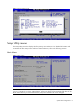
Figure 2 General Help Screen Setup Utility menus The Setup Utility menu bar displays the five primary menu selections. For detailed information and screenshots of these Setup menus and their related submenus, refer to the following sections. Main Manu Figure 3 Main Manu NOTE: The time is in 24-hour format. For example, 5:30 A.M. appears as 05:30:00, and 5:30, P.M. as 17:30:00. If you clear CMOS battery, setup time values will be 00:00:00 and date will be BIOS release date.
Table 2 Main menu fields Field Description System Overview Displays the system ROM Version, the date when the Setup utility was created and identification number. Processor Displays the CPU version and speed. System Memory Displays the amount of conventional memory detected during POST. Asset Tag Enter the server asset tag. System Serial Number Enter the server serial number. The serial number is indicated on the serial number label pull tab on the front panel.
Table 3 Boot Settings Configuration submenu fields Field Description Options Bootup NumLock Set this value to allow the Number Lock on the keyboard to be enabled automatically when the computer system is boot up. This allows the immediate use of 10-keys numeric keypad located on the right side of the keyboard. To confirm this, the Number Lock LED light on the keyboard Will be lit. Enabled This option does not enable the keyboard Number Lock automatically.
Table 4 Advanced menu fields Field Description CPU Configuration You can use this screen to select options for the CPU Configuration Settings. Use the up and down keys to select an item. Use the and keys to change the value of the selected option. A description of the selected item appears on the right Side of the screen. The settings are described on the following pages. IO Device Configuration You can use this screen to select options for the I/O Devices settings.
CPU Configuration submenu Figure 6 CPU Configuration submenu Table 5 CPU Configuration submenu fields Field Description Options Secure Virtual Machine Mode Set this value to Disable Secure Virtual Machine Mode (SVM). Disabled Set this value to Enable Secure Virtual Machine Mode (SVM). Enabled Disable the generation of ACPI, _PPC, _PPS, and _PCT objects. Disabled Enable the generation of ACPI, _PPC, _PPS, and _PCT objects.
IPMI Configuration submenu Figure 7 Super IO Configuration submenu Field Description 3F8/IRQ4 Set this value to allow the serial port to use 3F8 as its I/O port address and IRQ 4 for the interrupt address. This is the default setting. The majority of serial port 1 or COM1 ports on computer systems use IRQ4 and I/O Port 3F8 as the standard setting. The most common serial device connected to this port is a mouse. If the system will not use a serial device, it is best to set this port to Disabled.
S-ATA Configuration submenu Figure 8 S-ATA Configuration submenu Table 6 S-ATA Configuration submenu fields Field Description Options S-ATA mode Set this value to S-ATA mode S-ATA Set this value to P-ATA mode P-ATA Set this value to enabled INT13 support Enabled Set this value to disabled INT13 support Disabled Set this value to enabled NCQ Mode Enabled Set this value to disabled NCQ Mode Disabled Enabling this option allows the server to turn on the Drive Write Cache in the ATA hard drive.
ACPI Configuration submenu Figure 9 ACPI Configuration submenu Table 7 ACPI Configuration submenu fields Field Description Options High Precision Event Timer Disable HPET Disabled Enable HPET, the timer used 400h bytes, HPET memory base address is FED00000h FED00000h Enable HPET, the timer used 400h bytes, HPET memory base address is FED01000h FED01000h Enable HPET, the timer used 400h bytes, HPET memory base address is FED02000h FED02000h Enable HPET, the timer used 400h bytes, HPET memory bas
Log Configuration submenu Figure 10 Event Log Configuration submenu Table 8 Event Log Configuration submenu fields Field Description View Event log The option specifies View event log, it will display the event log. You can read some system information. Mark all events as read The option specifies mark all events as read, it will display the dialog windows to allow you mark all events as read now. There are you can select ok to mark all events as read now.
IPMI Configuration submenu Figure 11 IPMI Configuration submenu Table 9 IPMI Device Configuration submenu fields Field Description SEL Configuration Select SEL configuration in the left frame of the screen to go to the sub menu for that item. Then you can press Enter to enter its sub-menu. You can display an about SEL Configuration option by highlighting it using the keys.
Figure 12 SEL Configuration submenu Table 10 SEL Configuration submenu fields Field Description View BMC System Event Log The option specifies BMC system event log. Select this option and press to access the sub menu you can view the contents of System Event log. Clear BMC System Event Log The option specifies clear system event log. If the BMC Event log is full, you can choose this item to clear out the BMC Event log.
Table 11 Serial Port Configuration submenu fields Field Description Serial Port Assignment This setting will assign the serial port connector to the system. This is System the default setting. Serial Port Switching Serial Port Connection Mode Options This setting will assign the serial port connector to the BMC (Baseboard management controller). BMC This setting allows the Serial port switch between system and BMC.
Figure 15 Watchdog Configuration submenu Table 13 Watchdog Configuration submenu fields Field Description Options POST Watchdog Timer Action Set this value to allow BMC to reset if the operating system crashes or hangs. Reset System Disabling this option disables any BMC action if OS crashes or hangs. This is the default setting. Disabled Set this value to allow BMC to power down if the operating system crashes or hangs.
Figure 16 Hardware health information submenu System BIOS configuration 21
Console Redirection submenu Figure 17 Console Redirection submenu Table 14 Console Redirection submenu fields Field Description Options Console Redirection Setting this value will allow configure the serial port. Enabled Setting this value will prevent configure the serial port.
USB Configuration submenu Figure 18 USB Configuration submenu NOTE: when you install USB storage, there is display USB Mass Device Configuration item, from this item, you can get some information about the device, some information you can configure it if you need. Table 15 USB Configuration submenu fields Field Description Options USB Controller This setting allows the use of the USB function. This is the default setting. Enabled This setting makes the onboard USB function unavailable.
Boot Menu Figure 19 Boot Menu Table 16 Boot Menu fields Field Description Boot Device Priority Use this screen to specify the order in which the system checks for the device to boot from. To access this screen, select Boot Device priority on the Boot setup screen and press , the following screen display Embedded NIC Port 1 PXE The option specifies the embedded NIC Port 1 PXE .the defaults is enabled Embedded NIC Port 2 PXE The option specifies the embedded NIC Port 2 PXE .
Figure 20 Boot Device Priority submenu NOTE: When you select a boot category from the boot menu, a list of devices in that category appears. For example, if the system has three hard disk drives connected, then the list will show all three hard disk drives attached. Security menu The Security menu allows users to set an administrator password. When entered, this password allows the user to access and change all settings in the Setup Utility. Figure 22 Security menu To set an administrator password: 1.
In the Security menu screen, in the Change Administrator Password field, press Enter. The Enter New Password window displays Figure 23 Enter New Password 2. Type a new password in the Enter New Password box. The password may consist of up to eight alphanumeric characters (A-Z, a-z, 0-9), then press Enter , The Confirm New Password window displays. Figure 24 Confirm New Password 3. Type the same password in the Confirm New Password box to verify the first entry, and then press Enter.
Figure 25 Password installed 4. Press F10 to save the password and close the Setup Utility. Setup automatically changes the administrator Password Is field to set. To change the administrator password: 1. In the Security menu screen, in the Change Administrator Password field, press Enter. The Enter New Password window displays. Type a new password in the Enter New Password box. 2.
Figure 26 Password Check submenu Table 17 Password Check submenu fields Option Description Setup Set this value need to check password while invoking the set up utility. Always Set this value must check password while invoking setup on each boot. Exit menu The Exit menu displays several options on how to quit the Setup Utility. Select any of the exit options then press Enter.
Table 18 Exit menu fields Option Description Save Changes and Exit Save the changes made and exit the Setup Utility Discard Changes and Exit Discard the changes and exit the setup utility Discard Changes Discard the changes in the utility Load Option Default Loads the default settings for all BIOS setup fields.
Figure 28 BIOS Summary Display screen 6. Press the Pause/Break key to continue displaying the screen until another key is pressed. 7. Press any key to continue with the system bootup. Recording custom Setup values Write down the settings from the Setup Utility and keep them in a safe place. If the custom values ever need restoring (after clearing CMOS, for example), you must run the Setup Utility and enter these custom settings again. Having a record of these custom settings makes this much easier.
The clear CMOS setting is on clear CMOS button (SW4) on the system board. Refer to the HP ProLiant DL165G5p Server Maintenance and Service Guide for the location of this jumper block and the clear CMOS setting. To clear CMOS: 1. Perform the pre-installation procedures. 2. If necessary, remove any expansion boards, assemblies, or cables that prevent access to the press CMOS button (SW4). 3. Locate the clear CMOS button (SW4) on the system board. 4.
When no POST error message is displayed but the server stops during POST, listen for beep codes. Table 19 POST Error Messages Error code 000 Error message Timer Error Description/corrective action Indicates an error while programming the count register of channel 2 of the 8254 timer. This may indicate a problem with system hardware. Requires repair of the system board. 003 CMOS Battery Low CMOS Battery is low. This message usually indicates that the CMOS battery needs to be replaced.
Table 19 POST Error Messages Error code Error message 052 Master Slave Disk Error The IDE/ATAPI device configured as Slave in the 3rd IDE controller could not be properly initialized by the BIOS. This message is typically displayed when the BIOS is trying to detect and configure IDE/ATAPI devices in POST. 05E Password check failed If user input incorrect password more than three times, then display this error information and continue to boot.
Table 19 POST Error Messages Error code Error message Description/corrective action 0212 Keyboard Controller Failed Keyboard controller failed test. 0220 Monitor type does not match CMOS - Run SETUP The attached monitor cannot be correctly identified by Setup. 0250 Run Setup and check if the monitor type is correctly identified. System battery is dead - The CMOS clock battery indicator shows the system battery is dead.
• • The power outlet to which the server is connected is working. • • • • • The monitor's contrast and brightness settings are correct. The server and monitor are both turned on. The bicolor power status LED indicator on the front panel must be green. All internal cables are properly connected and all boards firmly seated. The processor is fully seated in its socket on the system board. The heat sink is properly installed on top of the processor. All memory modules are properly installed.
6. Set the jumper over the middle and right pins to enable the boot block, which forces the server to boot from the floppy drive. 7. If the DIMM1 and DIMM2 memory slots are empty, move the installed memory in slots DIMM3 and DIMM4 to slots DIMM1 and DIMM2. 8. Perform all of the post-installation procedure except step 4; do not reinstall the top cover of the server. 9. When the server begins reading the floppy disk, reinstall the crisis recovery jumper over the left and middle pins.
NOS installation Supported NOS Table 20 Supported network operating systems (NOS) NOS Version On-line information site Microsoft Windows Microsoft Windows Server 2003—Enterprise, Standard, and Web Editions Microsoft Windows Server 2003 R2— Enterprise, Standard, and Web Editions Microsoft Windows Server 2003 for 64-bit Microsoft World Wide Web access: www.microsoft.com Microsoft Product Support Services: http://support.microsoft.
recommends that you install and configure any of these hard drives after completing the NOS installation. • If you want to recycle used hard drives, use a utility such as disk to erase all data and partitions from that particular hard drive. BIOS update HP recommends that you update the server BIOS with the latest system BIOS version to take advantage of the most recent compatibility fixes. You can download the latest HP ProLiant DL165 G5p server BIOS at www.hp.com.
Section 1. Creating the driver diskettes To create the appropriate Windows NOS driver diskette: 1. Insert one blank, formatted 3.5" diskette into the floppy drive. 2. Insert the Support CD into the optical media drive. By default, the Support CD automatically runs and displays the Welcome page. However, if this does not occur, double-click the Startup.htm file located on the root directory of the Support CD. 3. Follow the on-screen instructions to create the Windows NOS driver diskette. 4.
The installation status is indicated by the Install Network progress bar. This may take some time. After the installation is completed, the system automatically reboots. 9. At the Welcome to Windows dialog box, press Ctrl-Alt-Del, then log on as Administrator. If you have successfully installed the Windows NOS, the Configure Your Server wizard launches. Close this window to postpone the customization of the server until all of the installation steps are completed.
Phase 3 - Installing the embedded video driver 1. Insert the Support CD in the server’s optical media drive. By default, the Support CD automatically runs and displays the Welcome page. However, if this does not occur, double-click the Startup.htm file located on the root directory of the Support CD. 2. Click the HP ProLiant DL165 G5p server drivers for chipset, Network, and Video link. 3. Select the embedded VGA driver for the Windows [NOS version] option. The File Download dialog box displays. 4.
Phase 2 - Initializing the hard drive There are two types of hard drive configurations: Dynamic and Basic. You can select the appropriate type by right-clicking on the disk drive icon. • Dynamic drives are used to create volumes, which can contain more than one physical hard drive. • Basic drives are used to create primary or local partitioned drives. To manage different drives and partitions: 1. Click Start | Programs | Administrative Tools | Computer Management. 2.
4. Check the number of disks required and label them as Terminal Services for […] Disk [x/y]. 5. Click OK to proceed. 6. Follow the on-screen instructions to create the diskette copies. 7. Click OK at the [y] floppies were created… screen. 8. Click Cancel to close the Create Installation Disks utility. Section 5. Configuring the network Phase 1 - Configuring the server’s IP address During the installation process, the system was configured to use DHCP.
To test the network link using Terminal Services: 1. Click Start | Programs | Terminal Services Client | Terminal Services Client on a client you installed Terminal Services on. 2. Select the target server from the Available Servers list displayed on the screen. 3. Click Connect. 4. Complete the User ID and Password login form. Phase 3 - Configuring the domain controller setup The Windows NOS manual calls this process "Promoting the server to a domain controller.” 1.
22. At the login prompt: a. Type in the administrator password you set. b. Click Options and verify that the Log on to: HOST displays on the dialog box. c. 23. Click OK to start the login process. A dialog box, This Server is Now a Domain Controller, displays after the login. Click Finish. Section 6. Installing additional HP accessories The HP ProLiant DL165 G5p Server Support CD includes the drivers for accessories compatible to your server.
Section 1. Launching the Red Hat Enterprise Linux 4 installer 1. Turn on the server and insert the Red Hat Enterprise Linux 4 CD 1. The system displays a text menu. 2. Press Enter to start the installation. 3. At the CD Found dialog box, click Skip. The Welcome to Red Hat Enterprise Linux page displays. 4. Click Next to proceed through the customization of your installation. Section 2.
Review and modify the selection as necessary, then click Next to continue. If you selected the Custom install option, pre-determined packages have already been selected. However, depending upon your network environment additional packages may be necessary. NOTE: Remember to select the appropriate package groups that match your network settings. For example, the DNS Name Server package may be required if you have set-up your new server to be the DNS controller. Section 3.
Red Hat Enterprise Linux 5 installation The procedures in this section apply to all versions of the Red Hat Enterprise Linux 5 supported by your ProLiant server. Refer to Table 21 for a list of these NOS versions. Section 1. Launching the Red Hat Enterprise Linux 5 installer 1. Turn on the server and insert the Red Hat Enterprise Linux 5 CD 1. The system displays a text menu. 2. Press Enter to start the installation. 3. At the CD Found dialog box, click Skip.
NOTE: Remember to select the appropriate package groups that match your network settings. For example, the DNS Name Server package may be required if you have set-up your new server to be the DNS controller. Section 3. Installing Red Hat Enterprise Linux 5 About to Install Once you complete the customization, the installation program asks for confirmation before proceeding with the install. 1. Click Next to proceed with the installation. 2.
Type root and the password you set during the NOS installation, then press Enter. Installing SUSE Linux Enterprise Server NOS The procedures in this section apply to the SUSE Linux Enterprise Server NOS, version 9 and 10. Installation flow 1. Install SUSE Linux Enterprise [version]. For the specific procedure for each SLE NOS version, refer to the following sections. 2. Install additional HP accessories.
Language Select the language you prefer for the installation, then click Accept to continue. Installation Setting 1. Click New Installation, then click OK. The installer automatically enables the default settings. 2. Review the default installation settings and modify them to meet your network environment. 3. Click Accept to initialize the installation process. 4. Click Yes, install on the warning dialog box to start the file copying.
SUSE Linux Enterprise Server 10 Installation Section 1. Installing SUSE Linux Enterprise Server 10 1. Turn on the server and insert the SUSE Linux Enterprise Server 10 (SLES10) CD 1. 2. Reboot the system to the SLES10 CD 1. 3. Select Installation, then press Enter to proceed to the customization of your installation. Section 2. Customizing the Installation Language Select the language you prefer for the installation, then click Accept to continue. Media Check Skip this stage of the installation.
User Authentication Method Select the authentication method appropriate for your environment, then click Next to continue. Add a New Local User Follow the prompt to add a new local user account, then click Next to continue. Release Note Review the release notes, then click Next to continue. Hardware Configuration Review the default hardware settings and modify them as necessary, then click Next to continue. Installation Completed Click Finish to reboot the system and proceed to the login Linux.
Sun Solaris 10 installation Section 1. Launching the Sun Solaris10 installer 1. Turn on the server and insert the Sun Solaris 10 DVD. 2. Reboot the system to the SS10U5 DVD. 3. Click Solaris, then press Enter. 4. Type 1 to select the Solaris Interactive Installation option. After a few minutes, the Proposed Window System Configuration for Installation list appears. These settings are incorrect and should be modified. 5. Press Esc to modify the settings and customize the installation. Section 2.
Continent and Country Select the continent and country of your location, then press F2 to continue. Time Zone Click Geographic Continent/Country/Region, then press F2 to continue. Date and Time Set the system date and time. If the default date and time settings displayed are correct, press F2. Otherwise, adjust the date and time settings, then press F2. Click Geographic Continent/Country/Region, then press F2 to continue. Root Password Enter a root password.
Select a disk for custom partitioning, then press F2 to continue. Customize fdisk Partitions – Disk c0d0 Enter the preferred partition size, then press F2 to continue. Layout File System Review the default file system layout and modify if necessary, then press F2 to continue. Ready to Install An installation information summary is displayed. Verify this information, then click Install Now to start the installation process. Upon completing the installation, the system automatically reboots.
Server management Pre- and post-installation procedures Pre-installation procedures WARNING: Failure to properly turn off the server before you open the server or before you start removing or installing hardware components may cause serious damage as well as bodily harm. WARNING: To reduce the risk of personal injury from hot surfaces, allow the chassis and any installed hardware components to cool before touching them.
Configuring the BMC The server includes a BMC for systems management, which you can access through a 10/100 Mbps LAN port for IPMI management. To access the BMC through this LAN port, you must configure the IP address. You can configure the settings for the BMC by using either the Setup Utility or another system (such as a laptop) that is connected to the serial port on the server. The serial port can be controlled by the server or shared between the server and the BMC (the default setting).
To revert to using DHCP to set the IP address, type set oemhp_dhcp_enable=TRUE to enable DHCP.The system takes a few seconds to set the new IP address. 1. Open a browser and enter the IP address that you set manually or that was set automatically using DHCP. 2. When prompted, enter the same user name and password you used in your terminal session. 3. Browse the server settings using the user interface that displays. To enable console redirection via the Setup Utility: 1.
Index A I administrator password, 25 IP subnet mask, 58 administrator password changing, 27 IPMI LAN interface, 58 administrator password clearing, 27 L asset tag, 9 LAN Configuration, 17 B LAN Controller, 58 base I/O address, 29 Load Option Default, 29 Baseboard management controller, 19 M Basic Input/Output System, 5 BIOS EHCI Hand-Off, 23 BIOS overview, 5 BMC firmware version, 29 BMC Watch Dog Time Out, 20 Boot Device Priority, 24 Main Manu, 8 Main menu, 6 memory, 9 N New Password box,
system configuration changing, 5 USB Controller, 23 System Date, 9 V system defaults, 30 System Time, 9 system time and date setting, 5 U View BMC System Event Log, 18 W Watchdog Configuration, 17 USB 2.