
HP ProLiant DL165 Generation 5 Software Configuration Guide

System BIOS configuration 11
Advanced menu
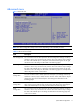
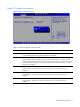
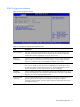
Figure 5 Advanced menu
NOTE: The CPU Configuration setup screen varies depending on the installed processor.
Table 4 Advanced menu fields
Field
Description
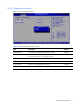
CPU Configuration You can use this screen to select options for the CPU Configuration Settings. Use the up
and down <Arrow> keys to select an item. Use the <Plus> and <Minus> keys to change
the value of the selected option. A description of the selected item appears on the right
side of the screen. The settings are described on the following pages.
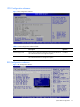
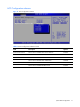
IDE Configuration You can use this screen to select options for the IDE Configuration Settings. Use the up
and down <Arrow> keys to select an item, Use the <Plus> and <Minus> keys to change
the value of the selected option. A description of the selected item appears on the right
side of the screen. The settings are described on the following pages. An example of the
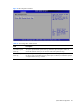
HDD Configuration screen is shown below.
SuperIO
Configuration
You can use this screen to select options for the Super I/O settings. Use the up
and down <Arrow> keys to select an item. Use the <Plus> and <Minus> keys to
change the value of the selected option. The settings are described on the
following pages.
S-ATA
Configuration
You can use this screen to select options for the S-ATA mode settings. Use the up and
down <Arrow> keys to select an item. Use the <Plus> and <Minus> keys to change the
value of the selected option. The settings are described on the following pages.
ACPI
Configuration
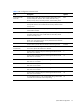
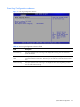
You can use this screen to select options for the AVPI Configuration settings. Use the up
and down <Arrow> keys to select an item. Use the <Plus> and <Minus> keys to change
the value of the selected option. The settings are described on the following pages. The
screen is shown below.