
HP ProLiant DL145 Generation 3 Server Software Configuration Guide

NOS installation 33
NOS installation
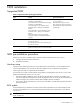
Supported NOS
Table 19 Supported network operating systems (NOS)
NOS Version On-line information site
Microsoft Windows Microsoft Windows Server 2003—Enterprise,
Standard, and Web Editions
Microsoft Windows Server 2003 R2—Enterprise,
Standard, and Web Editions
Microsoft Windows Server 2003 for 64-bit
Extended Systems—Enterprise and Standard
Editions
Microsoft Windows Server 2003 R2 for 64-bit
Extended Systems—Enterprise and Standard
Editions
Microsoft Windows Vista (32- and 64-bit)—
Enterprise, Standard, and Web Editions (beta
support)
Microsoft World Wide Web access:
www.microsoft.com
Microsoft Product Support Services:
http://support.microsoft.com/directory
Microsoft Software BBS: 206-936-6735
(14,400 bps)
Red Hat Enterprise Linux Red Hat Enterprise Linux 3 (32- and 64-bit)—AS,
ES, and WS versions
Red Hat Enterprise Linux 4 (32- and 64-bit)—AS,
ES, and WS versions
www.redhat.com
SUSE Linux Enterprise Server SUSE Linux Enterprise Server 9 (32- and 64-bit)
SUSE Linux Enterprise Server 10 (32- and 64-bit)
www.novell.com/linux
Sun Solaris Enterprise Sun Solaris 10 (64-bit) www.sun.com/solaris
NOS pre-installation procedure
Perform the two pre-NOS installation steps in this section before installing the NOS of your choice.
1. Configure the hardware aspect of the server.
2. Update the server BIOS.
Hardware setup
Prepare the server following the instructions in the HP ProLiant DL145 Generation 3 Server Installation Sheet.
It is recommended that you do not install any third party adapter until you verify that the HP equipment is
functioning properly and you complete the NOS installation.
Your ProLiant server comes with new hard disk drive(s) that do not need specific setup. However, if you install
additional used hard disk drives in your new server:
• Note that most NOS installations remove all data from the hard disk on which they are installed. If you
want to use additional hard disk drives to access existing data in the new server, HP recommends that you
install and configure any of these hard drives after completing the NOS installation.
• If you want to recycle used hard drives, use a utility such as fdisk to erase all data and partitions from that
particular hard drive.
BIOS update
HP recommends that you update the server BIOS with the latest system BIOS version to take advantage of the
most recent compatibility fixes. You can download the latest HP ProLiant DL145 Generation 3 server BIOS at
www.hp.com.
NOTE: For ease of reading, the HP ProLiant DL145 Generation 3 Server Support CD will be simply referred to
as the “Support CD.”