
CD-ROM/DVD Drive Install Instructions for HP ProLiant DL100 Series Generation 2 Servers

3. Prepare the optical media device bay for installation:
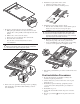
a. Pull up the optical media device bay release lever, then
push the drive carrier partially out through the front of the
chassis.
b. Pull the drive carrier out of the chassis.
c. Remove the screw securing the drive carrier bezel.
d. Detach the drive carrier bezel.
Store the drive carrier bezel (with its screw) for
reassembly later.
CAUTION: Do not discard the drive carrier bezel. If the optical
drive is removed in the future, this bezel must be reinstalled in
the chassis for the proper cooling of the system.
4. Remove the new optical drive from its protective packaging.
The optical drive option kits include mounting screws for
drive installation.
5. Install the new optical drive in the carrier:
a. Align the optical drive in the carrier.
b. Secure the drive with two mounting screws.
6. Install the new optical drive into the chassis:
a. Slide the drive assembly into the chassis until the optical
media device bay release lever snaps into place.
CAUTION: Route the optical drive cables neatly. If necessary,
secure them using the pre-installed cable clips located on the
chassis base. The cables should be routed in a position where
they will not be pinched or crimped by the top cover, nor should
they hamper proper airflow inside the chassis.
b. Route the optical drive’s power cables through the cable
management opening of the chassis’ partition wall.
c. Connect the IDE and power cables to their corresponding
connectors on the optical drive’s backplane board.
7. Perform the post-installation procedures described in the next
section.
Post-installation Procedures
1. Be sure all components are installed according to the
described step-by-step instructions.
2. Check to make sure you have not left loose tools or parts
inside the server.
3. Reinstall any expansion board(s), peripheral(s), board
cover(s), and system cable(s) that have previously been
removed.
4. Reinstall the top cover.
5. Connect all external cables and the AC power cord to the
system.
6. Press the power button
on the front panel to turn on the
server.