
HP ProLiant DL140 Generation 3 Server Maintenance and Service Guide




Contents 63
Diagnostic tools
Diagnostic tools overview
The following utilities assist in diagnosing problems, testing hardware, and monitoring and managing
server operations.
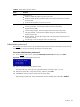
Table 3 Diagnostic tools
Tool What it is How to run it
User Diagnostics A tool to assist testing and/or
verifying operation of hardware. If
problems are found, the diagnostics
package isolates failures down to
the replaceable part, whenever
possible.
Diagnostics and utilities must be accessed
when a system configuration error is
detected during POST.
Check the HP website at www.hp.com
for
the most recent version of the HP ProLiant
DL140 Generation 3 User Diagnostics.
IPMI Event Log The IPMI Event Log is a log that is
generated by the management
controller (U45) when it detects
significant or critical system
management events. This includes
messages for events such as
‘temperature threshold exceeded’,
‘voltage threshold exceeded’,
‘power fault’, etc.
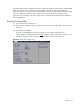
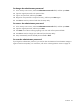
To view the IPMI event log:
1 Access the PhoenixBIOS Setup Utility.
2 In the Advanced
menu screen, select
the IPMI field, and then press Enter.
3 Select System Event Log, and then
press Enter.
PhoenixBIOS Setup Utility A hardware configuration program
used to manage memory, processor,
and system settings.
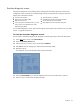
Run BIOS Setup directly by pressing the
F10 key during POST.
Refer to the
“Running the Setup Utility”
section on
page 65 for more information.
HP ROMPaq Utility A utility that upgrades the current
system ROM.
Run this utility from the HP ROMPaq Utility
bootable floppy after powering up the
server.
Check the HP website at www.hp.com
for
the most recent version of the HP ProLiant
DL140 Generation 3 ROM.
NOTE: For more information about the diagnostic tools described in this table, and other tools available for
your server, refer to the Servers Troubleshooting Guide located inside the HP ProLiant DL140 Generation 3
Server Support CD. For the most recent version of this guide, go to www.hp.com.