
ProLiant DL140 Generation 2 Server Maintenance and Service Guide

Diagnostic tools 46
System passwords
The Security menu lets you set system passwords that would provide different levels of protection for the server.
There are three types of passwords that you can set:
• Supervisor password
Entering this password will allow the user to access and change all settings in the Setup Utility.
• User password
Entering this password will restrict a user’s access to the Setup menus. A user can only access and modify
the System Time, System Date, and Set User Password fields.
• Power-on password
When the Password on Boot
field is enabled, a password will be required to boot up the server. To enable
or disable this field, a supervisor password must first be set.
To set a system password:
NOTE: A Supervisor password should be set first before a User password can be defined.
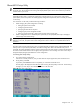
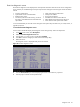
1. In the Security menu screen, select a set password field—Set User Password or Set Supervisor Password,
then press Enter.
Figure 60 Setup window for setting a system password
2. Type a new password in the password box.
The password may consist of up to eight alphanumeric characters (A-Z, a-z, 0-9).
3. Retype the password to verify the first entry, then press Enter.
4. Press F10 to save the password and close the Setup Utility.
After setting the password, Setup automatically sets the selected password field to Enabled.
To change a system password:
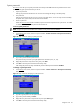
1. In the Security menu screen, select a set password field— Set User Password or Set Supervisor Password,
then press Enter.
Figure 61 Setup window for changing a system password
2. Type the original password in the password box.
3. Type a new password then press Enter.
4. Retype the new password to verify the first entry then press Enter again.
5. Press F10 to save the password and close the Setup Utility.