
ProLiant DL140 Generation 2 Server Maintenance and Service Guide

Diagnostic tools 43
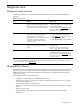
Navigating through the Setup Utility
Use the keys listed in the legend bar on the bottom of the Setup screen to work your way through the various
menu and submenu screens of the Setup Utility.
Table 3 Setup Utility’s navigation keys
Key Function
← and → To move between selections on the menu bar.
↑ and ↓ To move the cursor to the field you want.
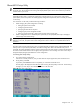
The currently selected field will be highlighted. The right side of each menu screen displays a field help
panel—Item Specific Help
panel. This panel displays the help text for the currently selected field. It updates
as you move the cursor to each field.
PgUp and PgDn To move the cursor to the previous and next page of a multiple page menu.
Home To move the cursor to the first page of a multiple page menu.
End To move the cursor to the last page of a multiple page menu.
+ and - To select a value for the currently selected field (only if it is user-configurable).
Press the (+) or (-) keys repeatedly to display each possible entry, or the Enter key to choose from a pop-up
menu.
A parameter that is enclosed in square brackets [ ] is user-configurable.
Grayed-out parameters are not user-configurable for one of the following reasons:
• The field value is auto-configured or auto-detected.
• The field value is informational only.
• The field is password-protected.
Enter To select a field value or display a submenu screen.
► Indicates a submenu field.
To view a submenu screen, use the ↑ and ↓ keys to move the cursor to the submenu you want, then press
Enter.
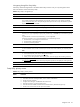
Esc If you press this key:
• On one of the primary menu screens, the Exit menu displays.
• On a submenu screen, the previous screen displays.
• When you are making selections from a pop-up menu, closes the pop-up without making a selection.
F1 or Alt-H To bring up the General Help window.
The General Help
window describes other Setup navigation keys that are not displayed on the legend bar.
F9 Press to load default system values.
F10 Press to save changes and close the Setup Utility.
Setup Utility primary menus
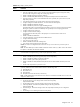
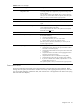
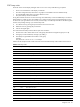
Table 4 Setup Utility's primary menus
Menu Function
Main Use this menu to:
• View BIOS information including ROM ID, version number and build date
• Set the system time and date.
• Configure drive settings for available IDE and SATA devices.
• Select which options to run during system boot-up.
• View the amount of available conventional and extended memory detected during boot-up.
• Set the server asset text and view the system serial number.