
ProLiant DL140 Generation 2 Server Maintenance and Service Guide

Diagnostic tools 42
PhoenixBIOS Setup Utility
NOTE: For ease of reading, PhoenixBIOS Setup Utility will be simply referred to as “Setup” or “Setup Utility” in
this guide. Also, the screenshots used in this guide display default system values. These values may not be the
same as those in your server.
PhoenixBIOS Setup Utility is a hardware configuration program built into your system's Basic Input/Output
System (BIOS). Since most systems are already properly configured and optimized, there is normally no need to
run this utility.
You will need to run this utility under the following conditions:
• When changing the system configuration including:
• Setting the system time and date
• Configuring the hard drives
• Specifying the boot device sequence
• Configuring the power management modes
• Setting up system passwords or making other changes to the security setup
• When a configuration error is detected by the system and you are prompted (“Run Setup” message) to
make changes to the BIOS settings.
NOTE: If you repeatedly receive “Run Setup” messages, the battery located on the system board (BT1) may be
defective. In this case, the system cannot retain configuration values in CMOS. Ask a qualified technician for
assistance.
The Setup Utility loads the configuration values in a battery-backed nonvolatile memory called CMOS RAM. This
memory area is not part of the system RAM, which allows configuration data to be retained when power is
turned off. The values take effect when the system is booted. POST uses these values to configure the hardware. If
the values and the actual hardware do not agree, POST generates an error message. You must run this utility to
change the BIOS settings from the default or current configuration.
Accessing the Setup Utility
1. Turn on the monitor and the server.
If the server is already turned on, save your data and exit all open applications, then restart the server.
2. During POST, press F10.
If you fail to press F10 before POST is completed, you will need to restart the server.
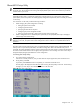
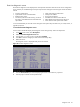
The first page to be displayed will be the Main
menu showing the Setup Utility’s menu bar. Use the left (←)
and right (→) arrow keys to move between selections on the menu bar.
Figure 58 Setup Utility’s Main menu