
ProLiant DL140 Generation 2 Server Maintenance and Service Guide


Removal and replacement procedures 30
A heat sink must be installed for the processor to function properly. The heat sink model for your ProLiant server
already has a thermal interface material pre-applied on the bottom protected by a plastic cover. Make sure that
this material has no scratches or gaps. If it does have any scratches or gaps, contact your HP Customer Support
provider for replacement.
CAUTION: To prevent overheating or a possible system crash, use only a heat sink model specified for the HP
ProLiant DL140 Generation 2 server.
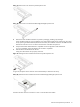
6. Remove and discard the plastic cover protecting the thermal interface material.
Be careful not to touch or scratch the thermal interface material.
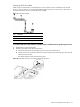
7. Install the heat sink.
a. Align then insert the heat sink on top of the processor.
CAUTION: Do not over tighten the heat sink’s spring-loaded screws to prevent them from breaking off. A
maximum torque of 6 in-lb is set for the system.
b. Tighten the four spring-loaded screws a few threads in, observing a diagonally opposite pattern, then
tighten them completely to secure the heat sink to the processor base.
Figure 38 Installing the heat sink
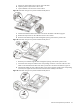
IMPORTANT: If the heat sink is removed for any reason, it is critical that more thermal interface material be
applied to the processor's integrated heat spreader in order to ensure proper thermal bonding between the
processor and the heat sink. Clean the contact surface of both the processor and heat sink with an alcohol
pad, and apply a thin layer of an HP approved thermal interface material before re-installing the processor. HP
recommends using ShinEtsu G751 thermal grease compound for your ProLiant server.
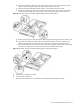
8. Reinstall the air duct in its place.
Figure 39 Reinstalling the air duct
9. Perform the post-installation procedure.