
HP ProLiant BL685c G6 Server Blade Installation Instructions
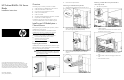
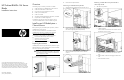
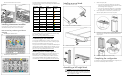
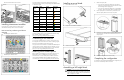

d. Remove the divider from the enclosure.
Installing interconnect modules
For specific steps to install interconnect modules, see the
documentation that ships with the interconnect module.
Interconnect bay numbering and device
mapping
• HP BladeSystem c7000 Enclosure
•
HP BladeSystem c3000 Enclosure
To support network connections for specific signals, install an
interconnect module in the bay corresponding to the embedded NIC
or mezzanine signals.
Server blade
signal
c7000
interconnect
bay
c3000
interconnect
bay
Interconnect
bay labels
NIC 1
(Embedded)
1 1
NIC 2
(Embedded)
2 1
NIC 3
(Embedded)
1 1
NIC 4
(Embedded)
2 1
Mezzanine 1 3 and 4 2
Mezzanine 2 5 and 6 3 and 4
7 and 8 3 and 4
Mezzanine 3 5 and 6 3 and 4
7 and 8 3 and 4
For detailed port mapping inform
ation, see the HP BladeSystem
enclosure installation poster or
the HP BladeSystem enclosure setup
and installation guide on the HP website
(http://www.hp.com/go/bladesystem/documentation
).
Connecting to the network
To connect the HP BladeSystem to
a network, each enclosure must
be configured with network interconnect devices to manage signals
between the server blades and the external network.
Two types of interconnect modules
are available for HP BladeSystem
c-Class enclosures: Pass-thru module
s and switch modules. For more
information about interconnect module options, see the HP w
ebsite
(http://www.hp.com/go/bladesystem/interconnects
).
Installing server blade options
Before installing and initializing the server blade, install any server
blade options, such as an addition
al processor, hard drive, or
mezzanine card. For server blade op
tions installation information,
see the HP ProLiant BL685c G6 Server Blade User Guide
on the
HP website (http://www.hp.com/g
o/bladesystem/documentation
).
Installing a server blade
1. Remove the connector covers.
2.
Prepare the server blade for installation.
3.
Install the server blade.
Assembling a full height blank
CAUTION:
To prevent improper cooling and thermal
damage, do not operate the se
rver blade or the enclosure
unless all hard drive and device bays are populated with
either a component or a blank.
1. Obtain the coupler plate:
o If you are using a device ba
y blank that came with the
enclosure, the coupler plate ca
n be found with the contents
of the full-height device shipping box.
o
If you are using a device bay
blank that you purchased as
an option, remove the coupler
plate from inside the blank.
2. Fit the coupler plate in to the
slots on top of the blank, and
slide the coupler plate back until it snaps into place.
3.
Fit the slots on the bottom of the second blank on to the tabs on
the coupler plate, and slide the second blank forward until it
snaps in place.
4.
Install the full-height blank into the device bay.
Completing the configuration
To complete the server blade and
HP BladeSystem configuration, see
the overview card that ships with the enclosure.