
HP ProLiant BL480c Server Blade User Guide
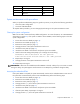

Table Of Contents
- HP ProLiant BL480c Server Blade User Guide
- Notice
- Contents
- Component identification
- Operations
- Setup
- Hardware options installation
- Cabling
- Software and configuration utilities
- Server blade deployment tools
- Configuration tools
- Management tools
- Automatic Server Recovery
- ROMPaq utility
- iLO 2 Standard Blade Edition technology
- Erase Utility
- StorageWorks library and tape tools
- HP Systems Insight Manager
- Management Agents
- HP ProLiant Essentials Virtualization Management Software
- HP ProLiant Essentials Server Migration Pack - Physical to ProLiant Edition
- HP BladeSystem Essentials Insight Control Data Center Edition
- Redundant ROM support
- USB support and functionality
- Diagnostic tools
- Remote support and analysis tools
- Keeping the system current
- Troubleshooting
- Battery replacement
- Regulatory compliance notices
- Regulatory compliance identification numbers
- Federal Communications Commission notice
- Declaration of conformity for products marked with the FCC logo, United States only
- Modifications
- Cables
- Canadian notice (Avis Canadien)
- European Union regulatory notice
- Disposal of waste equipment by users in private households in the European Union
- Japanese notice
- BSMI notice
- Korean notice
- Laser compliance
- Battery replacement notice
- Taiwan battery recycling notice
- Electrostatic discharge
- Specifications
- Technical support
- Acronyms and abbreviations
- Index

Component identification 11
Position Function Default
6* Reset configuration Off
7 Reserved Off
8 Reserved Off
*To access redundant ROM, set S1, S5, and S6 to ON.
System maintenance switch procedures
When you perform troubleshooting steps, this guide may instruct you to perform the following procedures:
• Clear the system configuration.
• Access the redundant ROM.
To complete these procedures, you must change physical settings on the system maintenance switch.
Clearing the system configuration
RBSU can be used to restore the factory default configuration. For more information, see "HP ROM-Based
Setup Utility (on page 48)." If the system is unable to boot into RBSU, use the following steps to clear the
system configuration:
1. Power down the server blade (on page 14).
2. Remove the server blade (on page 15).
3. Remove the access panel (on page 15).
4. Change position 6 of the system maintenance switch to on.
5. Install the access panel (on page 16).
6. Install the server blade in the enclosure and power up the server blade.
7. Wait for the POST message that prompts you to change the switch setting:
Maintenance switch detected in the "On" position.
Power off the server and turn switch to the "Off" position.
8. Repeat steps 1 through 3.
9. Change position 6 of the system maintenance switch to off.
10. Repeat steps 5 through 7.
IMPORTANT: When the server blade boots after NVRAM is cleared, a delay of up to 2 minutes is normal.
During this delay, the system appears non-functional. Do not attempt any procedures during the delay.
Accessing the redundant ROM
If the system ROM is corrupted, the system automatically switches to the redundant ROM in most cases. If
the system does not automatically switch to the redundant ROM, perform the following steps:
1. Power down the server blade (on page 14).
2. Remove the server blade (on page 15).
3. Remove the access panel (on page 15).
4. Change positions 1, 5, and 6 of the system maintenance switch to on.
5. Install the access panel (on page 16).
6. Install the server blade in the enclosure and power up the server blade.
7. After the system beeps, repeat steps 1 through 3.
8. Change positions 1, 5, and 6 of system maintenance switch to off.