HP ProLiant BL460c Gen8 Server Blade User Guide Abstract This document is for the person who installs, administers, and troubleshoots servers and storage systems. HP assumes you are qualified in the servicing of computer equipment and trained in recognizing hazards in products with hazardous energy levels.
© Copyright 2012 Hewlett-Packard Development Company, L.P. The information contained herein is subject to change without notice. The only warranties for HP products and services are set forth in the express warranty statements accompanying such products and services. Nothing herein should be construed as constituting an additional warranty. HP shall not be liable for technical or editorial errors or omissions contained herein. Microsoft® and Windows® are U.S. registered trademarks of Microsoft Corporation.
Contents Component identification ............................................................................................................... 6 Front panel components ............................................................................................................................. 6 Front panel LEDs and buttons ...................................................................................................................... 6 Drive LED definitions .........................................
Installing the Trusted Platform Module board ..................................................................................... 39 Retaining the recovery key/password .............................................................................................. 40 Enabling the Trusted Platform Module............................................................................................... 41 Cabling ....................................................................................................
Modifications .......................................................................................................................................... 60 Cables ................................................................................................................................................... 60 Canadian notice (Avis Canadien) .............................................................................................................. 60 European Union regulatory notice ...................
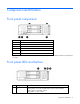
Component identification Front panel components Item Description 1 Hard drive bay 1 2 Server blade release button 3 Server blade release lever 4 Hard drive bay 2 5 HP c-Class Blade SUV connector* (behind the serial label pull tab) 6 Serial label pull tab *The SUV connector and the HP c-Class Blade SUV Cable are used for some server blade configuration and diagnostic procedures.
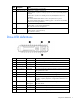
Item Description Status Off = Normal (System is in standby) 2 System power LED Solid Green = System is powered on. Flashing Green = System is waiting to power on; Power On/Standby button is pressed. Solid Amber = System is in standby; Power On/Standby Button service is initialized. Off and the Health Status LED bar is off = The system has no power. Off and the Health Status LED bar is flashing green = The Power On/Standby Button service is being initialized.
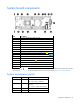
System board components Item Description 1 HP c-Class Blade SUV Cable connector 2 System battery 3 Processor socket 2 4 Processor 2 DIMM slots (8) 5 Processor 1 DIMM slots (8) 6 SAS controller connector 7 Processor socket 1 (populated) 8 Accelerator cache connector 9 Mezzanine connector 1 (Type A mezzanine only) 10 Mezzanine connector 2 (Type A or Type B mezzanine) 11 Enclosure connector 12 MicroSD card slot 13 FlexibleLOM connectors (2) 14 Internal USB connector 15 System ma
Position Default Function S5 Off Off = Power-on password is enabled. On = Power-on password is disabled. S6 Off Off = No function On = ROM reads system configuration as invalid. S7 — Reserved S8 — Reserved S9 — Reserved S10 — Reserved S11 — Reserved S12 — Reserved To access redundant ROM, set S1, S5, and S6 to on. When the system maintenance switch position 6 is set to the On position, the system is prepared to erase all system configuration settings from both CMOS and NVRAM.
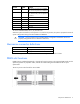
DIMM tool location The DIMM tool is used to open and close an empty DIMM slot.
Operations Power up the server blade The Onboard Administrator initiates an automatic power-up sequence when the server blade is installed. If the default setting is changed, use one of the following methods to power up the server blade: • Use a virtual power button selection through iLO. • Press and release the Power On/Standby button. When the server blade goes from the standby mode to the full power mode, the system power LED changes from amber to solid green.
o poweroff server [bay number] force This form of the command forces the server blade to enter standby mode without properly exiting applications and the OS. If an application stops responding, this method forces a shutdown. • Use the Onboard Administrator GUI to initiate a shutdown: a. Select the Enclosure Information tab. b. In the Device Bays item, select the Overall checkbox. c.
Remove the access panel To remove the component: 1. Power down the server blade (on page 11). 2. Remove the server blade (on page 12). 3. Press the access panel release button. 4. Slide the access panel towards the rear of the server blade, and then lift to remove the panel. Install the access panel 1. Place the access panel on top of the server blade. 2. Slide the access panel forward until it clicks into place. Remove the front panel/hard drive cage assembly 1.
2. Remove the server blade (on page 12). 3. Remove the access panel (on page 13). 4. Disconnect the capacitor pack cabling, if connected ("FBWC capacitor pack cabling" on page 42). 5. Remove one or more DIMM baffles.
Remove the SAS controller 1. Power down the server blade (on page 11). 2. Remove the server blade (on page 12). 3. Remove the access panel (on page 13). 4. Disconnect the capacitor pack cabling, if connected ("FBWC capacitor pack cabling" on page 42). CAUTION: Always remove the SAS controller before removing the drive cage. CAUTION: Always be sure that both captive screws are disengaged before removing the SAS controller.
5. Close the SAS controller handle and then install the SAS controller. To properly seat the SAS controller, press firmly in the areas indicated on the SAS controller.
Setup Overview Installation of a server blade requires the following steps: 1. Install and configure an HP BladeSystem c-Class enclosure. 2. Install any server blade options. 3. Install interconnect modules in the enclosure. 4. Connect the interconnect modules to the network. 5. Install a server blade. 6. Complete the server blade configuration. Installing an HP BladeSystem c-Class enclosure Before performing any server blade-specific procedures, install an HP BladeSystem c-Class enclosure.
Interconnect bay numbering and device mapping • HP BladeSystem c7000 Enclosure To support network connections for specific signals, install an interconnect module in the bay corresponding to the FlexibleLOM or mezzanine signals.
• HP BladeSystem c3000 Enclosure and Tower Enclosure Server blade signal Interconnect bay number Interconnect bay label Notes FlexibleLOM 1 — Mezzanine 1 2 Four port cards connect to bay 2. Mezzanine 2 3 and 4 • • • Four port cards Ports 1 and 3 connect to bay 3. Ports 2 and 4 connect to bay 4.
Two types of interconnect modules are available for HP BladeSystem c-Class enclosures: Pass-Thru modules and switch modules. For more information about interconnect module options, see the HP website (http://www.hp.com/go/bladesystem/interconnects). IMPORTANT: To connect to a network with a Pass-Thru module, always connect the Pass-Thru module to a network device that supports Gigabit or 10 Gb speed, depending on the corresponding Pass-Thru model.
2. Remove the enclosure connector cover. 3. Install the server blade. Completing the configuration To complete the server blade and HP BladeSystem configuration, see the overview card that ships with the enclosure.
Hardware options installation Introduction If more than one option is being installed, read the installation instructions for all the hardware options and identify similar steps to streamline the installation process. WARNING: To reduce the risk of personal injury from hot surfaces, allow the drives and the internal system components to cool before touching them. CAUTION: To prevent damage to electrical components, properly ground the server before beginning any installation procedure.
2. Prepare the drive. 3. Install the drive. 4. Determine the status of the drive from the drive LED definitions (on page 7). Processor option WARNING: To reduce the risk of personal injury from hot surfaces, allow the drives and the internal system components to cool before touching them. CAUTION: To prevent possible server blade malfunction and damage to the equipment, multiprocessor configurations must contain processors with the same part number.
3. Remove the server blade (on page 12). 4. Remove the access panel (on page 13). 5. Remove the SAS controller (on page 15). 6. Remove the heatsink blank. Retain the heatsink blank for future use. 7. Open each of the processor locking levers in the order indicated, and then open the processor retaining bracket.
8. Remove the clear processor socket cover. Retain the processor socket cover for future use. 9. Install the processor. Verify that the processor is fully seated in the processor retaining bracket by visually inspecting the processor installation guides on either side of the processor. THE PINS ON THE SYSTEM BOARD ARE VERY FRAGILE AND EASILY DAMAGED. CAUTION: THE PINS ON THE SYSTEM BOARD ARE VERY FRAGILE AND EASILY DAMAGED.
CAUTION: Do not press down on the processor. Pressing down on the processor may cause damage to the processor socket and the system board. Press only in the area indicated on the processor retaining bracket. 11. Press and hold the processor retaining bracket in place, and then close each processor locking lever. Press only in the area indicated on the processor retaining bracket. 12. Remove the thermal interface protective cover from the heatsink.
CAUTION: Heatsink retaining screws should be tightened in diagonally opposite pairs (in an "X" pattern). 13. Install the heatsink. 14. Install the SAS controller (on page 15). 15. Install the access panel (on page 13). 16. Install the server blade ("Installing a server blade" on page 20). Memory options IMPORTANT: This server blade does not support mixing LRDIMMs, RDIMMs, or UDIMMs. Attempting to mix any combination of these DIMMs can cause the server to halt during BIOS initialization.
• Quad-rank PC3L-10600 (DDR3-1333) LRDIMMs operating at up to 1333 MT/s Speed, voltage, and capacity DIMM type DIMM rank DIMM capacity Native speed (MT/s) Voltage RDIMM Single-rank 4 GB 1600 STD RDIMM Dual-rank 8 GB 1333 LV RDIMM Single-rank 8 GB 1600 STD RDIMM Dual-rank 16 GB 1333 LV RDIMM Dual-rank 16 GB 1600 STD LRDIMM Quad-rank 32 GB 1333 LV UDIMM Single-rank 2 GB 1333 LV UDIMM Dual-rank 4 GB 1333 LV UDIMM Dual-rank 8 GB 1333 LV Depending on the proces
Channel Slot Slot number 1 A E 1 2 2 B F 3 4 3 C G 8 7 4 D H 6 5 For the location of the slot numbers, see "DIMM slot locations (on page 9)." This multi-channel architecture provides enhanced performance in Advanced ECC mode. This architecture also enables the Lockstep memory mode. DIMM slots in this server are identified by number and by letter. Letters identify the population order. Slot numbers indicate the DIMM slot ID for spare replacement.
DIMM identification To determine DIMM characteristics, use the label attached to the DIMM and the following illustration and table. Item Description Definition 1 Size — 2 Rank 1R = Single-rank 2R = Dual-rank 4R = Quad-rank 3 Data width x4 = 4-bit x8 = 8-bit 4 Voltage rating L = Low voltage (1.35v) U = Ultra low voltage (1.
is degrading. This allows DIMMs that have a higher probability of receiving an uncorrectable memory error (which would result in system downtime) to be removed from operation. Advanced Memory Protection options are configured in RBSU. If the requested AMP mode is not supported by the installed DIMM configuration, the server blade boots in Advanced ECC mode. For more information, see "HP ROM-Based Setup Utility (on page 51).
Lockstep memory configuration Lockstep mode provides protection against multi-bit memory errors that occur on the same DRAM device. Lockstep mode can correct any single DRAM device failure on x4 and x8 DIMM types. The DIMMs in each channel must have identical HP part numbers. General DIMM slot population guidelines Observe the following guidelines for all AMP modes: • Install DIMMs only if the corresponding processor is installed.
Lockstep Memory population guidelines For Lockstep memory mode configurations, observe the following guidelines: • Observe the general DIMM slot population guidelines (on page 32). • DIMM configuration on all channels of a processor must be identical. • In multi-processor configurations, each processor must have a valid Lockstep Memory configuration. • In multi-processor configurations, each processor may have a different valid Lockstep Memory configuration.
7. Install the DIMM. 8. Install all DIMM baffles. 9. Install the access panel (on page 13). To configure the memory mode, use RBSU ("HP ROM-Based Setup Utility" on page 51). Mezzanine card option Optional mezzanine cards are classified as Type A mezzanine cards and Type B mezzanine cards. The type of the mezzanine card determines where it can be installed in the server blade. • Install Type A mezzanine cards on Mezzanine 1 connector or Mezzanine 2 connector.
4. Remove the mezzanine assembly from the server blade. 5. Align the mezzanine card with the guide pins on the mezzanine assembly.
6. Install the mezzanine card in the mezzanine assembly, and then tighten the mezzanine card screws to secure the card to the mezzanine assembly. 7. Align the mezzanine assembly with the guide pins on the system board, and then install the mezzanine assembly on the system board. 8. Press down firmly on the mezzanine assembly handles, and then close the mezzanine assembly latch. 9. Install the access panel (on page 13). 10. Install the server blade ("Installing a server blade" on page 20).
3. Remove the access panel (on page 13). 4. Install the FBWC capacitor pack: 5. o FBWC capacitor pack for the SAS controller o FBWC capacitor pack for a mezzanine option. Route the FBWC capacitor pack cable. The DIMM baffles may be removed to route the cables, if necessary.
o Route the cable along the right DIMM baffle and connect the cable to the SAS controller. o Route the cable along the left DIMM baffle and connect the cable to the mezzanine option. 6. Install the access panel (on page 13). 7. Install the server blade ("Installing a server blade" on page 20). HP Trusted Platform Module option Use these instructions to install and enable a TPM on a supported server blade. This procedure includes three sections: 1.
• Do not remove an installed TPM. Once installed, the TPM becomes a permanent part of the system board. • When installing or replacing hardware, HP service providers cannot enable the TPM or the encryption technology. For security reasons, only the customer can enable these features. • When returning a system board for service replacement, do not remove the TPM from the system board. When requested, HP Service provides a TPM with the spare system board.
9. Install the TPM board. Press down on the connector to seat the board ("System board components" on page 8). 10. Install the TPM security rivet by pressing the rivet firmly into the system board. 11. Install the front panel/drive cage assembly. 12. Install the SAS controller (on page 15). 13. Install the DIMM baffle. 14. Install the access panel (on page 13). 15. Install the server blade ("Installing a server blade" on page 20). 16. Power up the server blade (on page 11).
To help ensure maximum security, observe the following guidelines when retaining the recovery key/password: • Always store the recovery key/password in multiple locations. • Always store copies of the recovery key/password away from the server blade. • Do not save the recovery key/password on the encrypted hard drive. Enabling the Trusted Platform Module 1. When prompted during the start-up sequence, access RBSU by pressing the F9 key. 2. From the Main Menu, select Server Security. 3.
Cabling Cabling resources Cabling configurations and requirements vary depending on the product and installed options. For more information about product features, specifications, options, configurations, and compatibility, see the QuickSpecs on the HP website (http://www.hp.com/go/productbulletin). At the website, choose the geographic region, and then locate the product by name or product category.
Connecting locally to a server blade with video and USB devices Use the SUV cable to connect a monitor and any of the following USB devices: • USB hub • USB keyboard • USB mouse • USB CD/DVD-ROM drive Numerous configurations are possible. This section offers two possible configurations. For more information, see "USB support (on page 55)." Accessing a server blade with local KVM For this configuration, a USB hub is not necessary. To connect additional devices, use a USB hub.
Accessing local media devices Use the following configuration when configuring a server blade or loading software updates and patches from a USB CD/DVD-ROM. Use a USB hub when connecting a USB CD-ROM drive to the server blade. The USB hub provides additional connections. 1. Open the serial label pull tab and connect the HP c-Class Blade SUV cable to the server blade. 2. Connect the video connector to a monitor. 3. Connect a USB hub to one USB connector. 4.
Troubleshooting Troubleshooting resources The HP ProLiant Gen8 Troubleshooting Guide, Volume I: Troubleshooting provides procedures for resolving common problems and comprehensive courses of action for fault isolation and identification, issue resolution, and software maintenance on ProLiant servers and server blades. To view the guide, select a language: • English (http://www.hp.com/support/ProLiant_TSG_v1_en) • French (http://www.hp.com/support/ProLiant_TSG_v1_fr) • Spanish (http://www.hp.
Software and configuration utilities Server mode The software and configuration utilities presented in this section operate in online mode, offline mode, or in both modes.
iLO enables and manages the Active Health System (on page 47) and also features Agentless Management. All key internal subsystems are monitored by iLO. SNMP alerts are sent directly by iLO regardless of the host operating system or even if no host operating system is installed. Using iLO, you can do the following: • Access a high-performance and secure Remote Console to the server from anywhere in the world. • Use the shared iLO Remote Console to collaborate with up to six server administrators.
The Active Health System log, in conjunction with the system monitoring provided by Agentless Management or SNMP Pass-thru, provides continuous monitoring of hardware and configuration changes, system status, and service alerts for various server components. The Agentless Management Service is available in the SPP, which is a disk image (.iso) that you can download from the HP website (http://www.hp.com/go/spp/download).
HP Insight Diagnostics HP Insight Diagnostics is a proactive server blade management tool, available in both offline and online versions, that provides diagnostics and troubleshooting capabilities to assist IT administrators who verify server blade installations, troubleshoot problems, and perform repair validation. HP Insight Diagnostics Offline Edition performs various in-depth system and component testing while the OS is not running.
Scripting Toolkit The Scripting Toolkit is a server deployment product that enables you to build an unattended automated installation for high-volume server deployments. The Scripting Toolkit is designed to support ProLiant BL, ML, DL, and SL servers. The toolkit includes a modular set of utilities and important documentation that describes how to apply these tools to build an automated server deployment process. The Scripting Toolkit provides a flexible way to create standard server configuration scripts.
• Enables direct update of BMC firmware (HP iLO) For more information about HP SUM and to access the HP Smart Update Manager User Guide, see the HP website (http://www.hp.com/go/hpsum/documentation).
NOTE: The server may not support all the following examples. Drives installed Drives used RAID level 1 1 RAID 0 2 2 RAID 1 3, 4, 5, or 6 3, 4, 5, or 6 RAID 5 More than 6 0 None To change any ORCA default settings and override the auto-configuration process, press the F8 key when prompted. For more information on RBSU, see the HP ROM-Based Setup Utility User Guide on the Documentation CD or the HP website (http://www.hp.com/support/rbsu).
WARNING! WARNING! WARNING! The serial number is loaded into the system during the manufacturing process and should NOT be modified. This option should only be used by qualified service personnel. This value should always match the serial number sticker located on the chassis. Warning: The serial number should ONLY be modified by qualified service personnel. This value should always match the serial number located on the chassis. 5. Press the Enter key to clear the warning. 6.
ACU is now available as an embedded utility, starting with HP ProLiant Gen8 servers. To access ACU, use one of the following methods: • If an optional controller is not installed, press F10 during boot. • If an optional controller is installed, when the system recognizes the controller during POST, press F5. For optimum performance, the minimum display settings are 1024 × 768 resolution and 16-bit color.
Automatic Server Recovery ASR is a feature that causes the system to restart when a catastrophic operating system error occurs, such as a blue screen, ABEND (does not apply to HP ProLiant DL980 Servers), or panic. A system fail-safe timer, the ASR timer, starts when the System Management driver, also known as the Health Driver, is loaded. When the operating system is functioning properly, the system periodically resets the timer.
IMPORTANT: Always perform a backup before installing or updating device drivers. The server blade includes new hardware that may not have driver support on all OS installation media. If you are installing an Intelligent Provisioning-supported OS, use Intelligent Provisioning (on page 48) and its Configure and Install feature to install the OS and latest supported drivers. If you do not use Intelligent Provisioning to install an OS, drivers for some of the new hardware are required.
HP Technology Service Portfolio HP Technology Services offers a targeted set of consultancy, deployment, and service solutions designed to meet the support needs of the most business and IT environments. Foundation Care services deliver scalable hardware and software support packages for HP ProLiant server and industry-standard software. You can choose the type and level of service that is most suitable for your business needs.
Battery replacement If the server blade no longer automatically displays the correct date and time, you might have to replace the battery that provides power to the real-time clock. Under normal use, battery life is 5 to 10 years. WARNING: The computer contains an internal lithium manganese dioxide, a vanadium pentoxide, or an alkaline battery pack. A risk of fire and burns exists if the battery pack is not properly handled.
Regulatory compliance notices Regulatory compliance identification numbers For the purpose of regulatory compliance certifications and identification, this product has been assigned a unique regulatory model number. The regulatory model number can be found on the product nameplate label, along with all required approval markings and information. When requesting compliance information for this product, always refer to this regulatory model number.
radio communications. However, there is no guarantee that interference will not occur in a particular installation. If this equipment does cause harmful interference to radio or television reception, which can be determined by turning the equipment off and on, the user is encouraged to try to correct the interference by one or more of the following measures: • Reorient or relocate the receiving antenna. • Increase the separation between the equipment and receiver.
This Class A digital apparatus meets all requirements of the Canadian Interference-Causing Equipment Regulations. Cet appareil numérique de la classe A respecte toutes les exigences du Règlement sur le matériel brouilleur du Canada. Class B equipment This Class B digital apparatus meets all requirements of the Canadian Interference-Causing Equipment Regulations. Cet appareil numérique de la classe B respecte toutes les exigences du Règlement sur le matériel brouilleur du Canada.
This symbol on the product or on its packaging indicates that this product must not be disposed of with your other household waste. Instead, it is your responsibility to dispose of your waste equipment by handing it over to a designated collection point for the recycling of waste electrical and electronic equipment.
Class B equipment Chinese notice Class A equipment Vietnam compliance marking notice This marking is for applicable products only. Ukraine notice Laser compliance This product may be provided with an optical storage device (that is, CD or DVD drive) and/or fiber optic transceiver. Each of these devices contains a laser that is classified as a Class 1 Laser Product in accordance with US FDA regulations and the IEC 60825-1. The product does not emit hazardous laser radiation.
WARNING: Use of controls or adjustments or performance of procedures other than those specified herein or in the laser product's installation guide may result in hazardous radiation exposure. To reduce the risk of exposure to hazardous radiation: • Do not try to open the module enclosure. There are no user-serviceable components inside. • Do not operate controls, make adjustments, or perform procedures to the laser device other than those specified herein.
Nach ISO 7779:1999 (Typprüfung) Wireless devices You can install one or more integrated wireless devices. In some environments, the use of wireless devices might be restricted. Such restrictions might apply on airplanes, in hospitals, near explosives, or in other hazardous locations. Before you turn on this product, be sure that you understand local policies and have proper authorization. Do not co-locate or operate this device in conjunction with any other antenna or transmitter.
Taiwan notices Regulatory compliance notices 66
Electrostatic discharge Preventing electrostatic discharge To prevent damaging the system, be aware of the precautions you need to follow when setting up the system or handling parts. A discharge of static electricity from a finger or other conductor may damage system boards or other static-sensitive devices. This type of damage may reduce the life expectancy of the device. To prevent electrostatic damage: • Avoid hand contact by transporting and storing products in static-safe containers.
Specifications Environmental specifications Specification Value — Temperature range* Operating 10°C to 35°C (50°F to 95°F) Non-operating -30°C to 60°C (-22°F to 140°F) Relative humidity (noncondensing)** — Operating 10% to 90% @ 28°C (82.4°F) Non-operating 5% to 95% @ 38.7°C (101.7°F) Altitude† — Operating 3050 m (10,000 ft) Non-operating 9144 m (30,000 ft) * The following temperature conditions and limitations apply: - All temperature ratings shown are for sea level.
Support and other resources Before you contact HP Be sure to have the following information available before you call HP: • Active Health System log Download and have available an Active Health System log for 3 days before the failure was detected. For more information, see the HP iLO 4 User Guide or HP Intelligent Provisioning User Guide on the HP website (http://www.hp.com/go/ilo/docs).
providers or service partners) identifies that the repair can be accomplished by the use of a CSR part, HP will ship that part directly to you for replacement. There are two categories of CSR parts: • Mandatory—Parts for which customer self repair is mandatory. If you request HP to replace these parts, you will be charged for the travel and labor costs of this service. • Optional—Parts for which customer self repair is optional. These parts are also designed for customer self repair.
Pour plus d'informations sur le programme CSR de HP, contactez votre Mainteneur Agrée local. Pour plus d'informations sur ce programme en Amérique du Nord, consultez le site Web HP (http://www.hp.com/go/selfrepair). Riparazione da parte del cliente Per abbreviare i tempi di riparazione e garantire una maggiore flessibilità nella sostituzione di parti difettose, i prodotti HP sono realizzati con numerosi componenti che possono essere riparati direttamente dal cliente (CSR, Customer Self Repair).
HINWEIS: Einige Teile sind nicht für Customer Self Repair ausgelegt. Um den Garantieanspruch des Kunden zu erfüllen, muss das Teil von einem HP Servicepartner ersetzt werden. Im illustrierten Teilekatalog sind diese Teile mit „No“ bzw. „Nein“ gekennzeichnet. CSR-Teile werden abhängig von der Verfügbarkeit und vom Lieferziel am folgenden Geschäftstag geliefert. Für bestimmte Standorte ist eine Lieferung am selben Tag oder innerhalb von vier Stunden gegen einen Aufpreis verfügbar.
sustituciones que lleve a cabo el cliente, HP se hará cargo de todos los gastos de envío y devolución de componentes y escogerá la empresa de transporte que se utilice para dicho servicio. Para obtener más información acerca del programa de Reparaciones del propio cliente de HP, póngase en contacto con su proveedor de servicios local. Si está interesado en el programa para Norteamérica, visite la página web de HP siguiente (http://www.hp.com/go/selfrepair).
Opcional – Peças cujo reparo feito pelo cliente é opcional. Essas peças também são projetadas para o reparo feito pelo cliente. No entanto, se desejar que a HP as substitua, pode haver ou não a cobrança de taxa adicional, dependendo do tipo de serviço de garantia destinado ao produto. OBSERVAÇÃO: Algumas peças da HP não são projetadas para o reparo feito pelo cliente. A fim de cumprir a garantia do cliente, a HP exige que um técnico autorizado substitua a peça.
Support and other resources 75
Support and other resources 76
Acronyms and abbreviations ABEND abnormal end ACU Array Configuration Utility ADM Advanced Data Mirroring AMP Advanced Memory Protection ASR Automatic Server Recovery FBWC flash-backed write cache FC Fibre Channel iLO Integrated Lights-Out IML Integrated Management Log LRDIMM load reduced dual in-line memory module LV DIMM Low voltage DIMM ORCA Option ROM Configuration for Arrays Acronyms and abbreviations 77
POST Power-On Self Test PSP HP ProLiant Support Pack PXE preboot execution environment RBSU ROM-Based Setup Utility RDIMM registered dual in-line memory module SAS serial attached SCSI SATA serial ATA SIM Systems Insight Manager UDIMM unregistered dual in-line memory module UID unit identification USB universal serial bus VCA Version Control Agent Acronyms and abbreviations 78
Documentation feedback HP is committed to providing documentation that meets your needs. To help us improve the documentation, send any errors, suggestions, or comments to Documentation Feedback (mailto:docsfeedback@hp.com). Include the document title and part number, version number, or the URL when submitting your feedback.
Index A access panel 13 acoustics statement for Germany 64 ACU (Array Configuration Utility) 46, 53 Advanced ECC memory 31, 32, 52 Array Configuration Utility (ACU) 53 ASR (Automatic Server Recovery) 55 authorized reseller 69 auto-configuration process 51 Automatic Server Recovery (ASR) 55 B Basic Input/Output System (BIOS) 46, 54 batteries, replacing 58, 64 battery 8, 58, 64 battery replacement notice 64 beep codes 45 before you contact HP 69 BIOS (Basic Input/Output System) 46, 54 BIOS upgrade 46, 54 bla
F FBWC capacitor cabling 42 FBWC capacitor pack 36, 42 FCC (Federal Communications Commission) notice 59, 60 FCC rating label 59 features 6, 53 Federal Communications Commission (FCC) notice 59, 60 firmware upgrade utility, troubleshooting 45 front panel buttons 6 front panel components 6 front panel LEDs 6 front panel/drive cage assembly 13 front panel/hard drive cage assembly 13 Insight Diagnostics 49, 55 installation, enclosure 17 installation, server blade 20 installation, server options 22 installing
mezzanine board connectors 8 mezzanine boards 34 mezzanine card 34 mezzanine connector covers 34 mezzanine connectors 8, 9 modifications, FCC notice 60 N network connections 19 NIC (network interface card) 8 O online spare memory 31, 32, 52 operating systems 56 operations 11 Option ROM Configuration for Arrays (ORCA) 46, 54 options 17, 46 options installation 17, 22 ORCA (Option ROM Configuration for Arrays) 46, 54 overview 17 P passwords 40 phone numbers 69 population guidelines, Advanced ECC 32 populat
troubleshooting resources 45 troubleshooting, firmware upgrade utility 45 Trusted Platform Module (TPM) 38, 39, 40, 41 U Ukraine notice 63 updating the system ROM 55 USB connectors 10 USB devices 43 USB support 55 utilities 46, 53 utilities, deployment 46, 50, 51 V Version Control Agent (VCA) 56 Version Control Repository Manager (VCRM) 56 video connector 10 video connector cabling 10 video devices 43 Vietnam compliance marking notice 63 W website, HP 69 wireless devices 65, 66 Index 83