
HP ProLiant BL460c G6 Server Blade User Guide
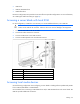
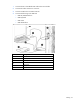
Table Of Contents
- HP ProLiant BL460c G6 Server Blade User Guide
- Abstract
- Notice
- Contents
- Component identification
- Operations
- Setup
- Hardware options installation
- Introduction
- Hard drive option
- Processor option
- Memory options
- Mezzanine card option
- Cache module and battery pack option
- HP Trusted Platform Module option
- Cabling
- Software and configuration utilities
- Troubleshooting
- Battery replacement
- Regulatory compliance notices
- Regulatory compliance identification numbers
- Federal Communications Commission notice
- Declaration of conformity for products marked with the FCC logo, United States only
- Modifications
- Cables
- Canadian notice (Avis Canadien)
- European Union regulatory notice
- Disposal of waste equipment by users in private households in the European Union
- Japanese notice
- BSMI notice
- Korean notice
- Chinese notice
- Laser compliance
- Battery replacement notice
- Taiwan battery recycling notice
- Acoustics statement for Germany (Geräuschemission)
- Electrostatic discharge
- Specifications
- Technical support
- Acronyms and abbreviations
- Index
Cabling 46
• USB mouse
• USB CD/DVD-ROM drive
• USB diskette drive
Numerous configurations are possible. This section offers two possible configurations. For more information,
see "USB support and functionality (on page 60)."
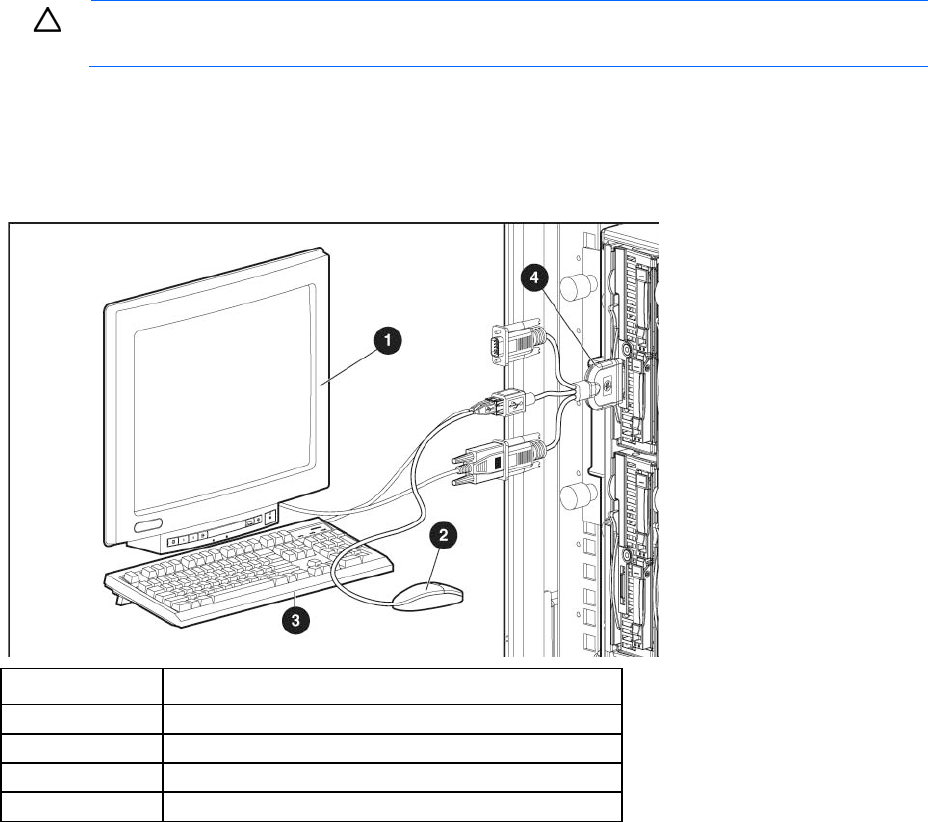
Accessing a server blade with local KVM
For this configuration, a USB hub is not necessary. To connect additional devices, use a USB hub.
CAUTION:
Before disconnecting the SUV cable from the connector, always squeeze the release
buttons on the sides of the connector. Failure to do so can result in damage to the equipment.
1. Connect the SUV cable to the server blade.
2. Connect the video connector to a monitor.
3. Connect a USB mouse to one USB connector.
4. Connect a USB keyboard to the second USB connector.
Item Description
1
Monitor
2
USB mouse
3
USB keyboard
4
HP c-Class Blade SUV Cable
Accessing local media devices
Use the following configuration when configuring a server blade or loading software updates and patches
from a USB CD/DVD-ROM or a USB diskette.
Use a USB hub when connecting a USB diskette drive and/or USB CD-ROM drive to the server blade. The
USB hub provides additional connections.