
HP ProLiant BL460c G6 Server Blade User Guide
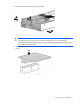
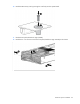
Table Of Contents
- HP ProLiant BL460c G6 Server Blade User Guide
- Abstract
- Notice
- Contents
- Component identification
- Operations
- Setup
- Hardware options installation
- Introduction
- Hard drive option
- Processor option
- Memory options
- Mezzanine card option
- Cache module and battery pack option
- HP Trusted Platform Module option
- Cabling
- Software and configuration utilities
- Troubleshooting
- Battery replacement
- Regulatory compliance notices
- Regulatory compliance identification numbers
- Federal Communications Commission notice
- Declaration of conformity for products marked with the FCC logo, United States only
- Modifications
- Cables
- Canadian notice (Avis Canadien)
- European Union regulatory notice
- Disposal of waste equipment by users in private households in the European Union
- Japanese notice
- BSMI notice
- Korean notice
- Chinese notice
- Laser compliance
- Battery replacement notice
- Taiwan battery recycling notice
- Acoustics statement for Germany (Geräuschemission)
- Electrostatic discharge
- Specifications
- Technical support
- Acronyms and abbreviations
- Index
Hardware options installation 43
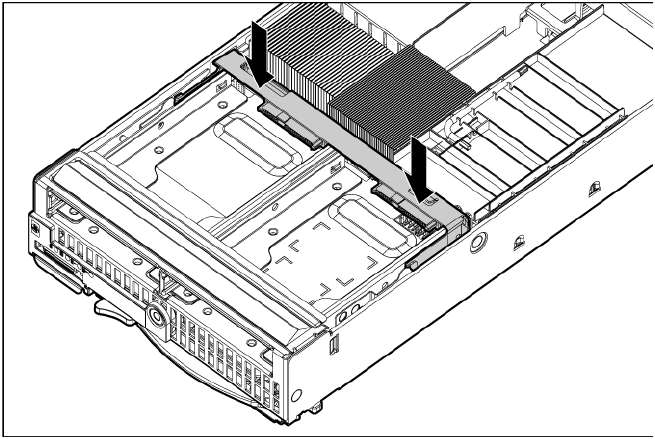
13. Install the hard drive backplane. Press down on the hard drive backplane retainer to seat the board.
14. Install the access panel (on page 14).
15. Install the server blade ("Installing a server blade" on page 18).
16. Power up the server blade (on page 12).
Retaining the recovery key/password
The recovery key/password is generated during BitLocker™ setup, and can be saved and printed after
BitLocker™ is enabled. When using BitLocker™, always retain the recovery key/password. The recovery
key/password is required to enter Recovery Mode after BitLocker™ detects a possible compromise of system
integrity.
To help ensure maximum security, observe the following guidelines when retaining the recovery
key/password:
• Always store the recovery key/password in multiple locations.
• Always store copies of the recovery key/password away from the server blade.
• Do not save the recovery key/password on the encrypted hard drive.
Enabling the Trusted Platform Module
1. When prompted during the start-up sequence, access RBSU by pressing the F9 key.
2. From the Main Menu, select Server Security.
3. From the Server Security Menu, select Trusted Platform Module.
4. From the Trusted Platform Module Menu, select TPM Functionality.
5. Select Enable, and then press the Enter key to modify the TPM Functionality setting.
6. Press the Esc key to exit the current menu, or press the F10 key to exit RBSU.
7. Reboot the server blade.
8. Enable the TPM in the OS. For OS-specific instructions, see the OS documentation.