
HP ProLiant BL20p Generation 2 Server Blade Setup and Installation Guide

Troubleshooting
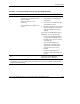
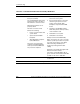
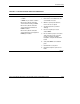
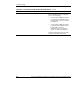
Table D-3: Is the Server Blade Power on/standby LED Green?
Answer Possible Reasons Possible Solutions
No, it is amber Power On/Standby button has not
been pressed firmly.
The standard NIC module, Smart
Array 5i Plus memory module, or
FC mezzanine card is unseated.
Management modules are not
properly cabled.
A broken connections exists
between the following:
• Power converter module and
system board
• System board and SCSI
backplane
• SCSI backplane and power
button/LED board
The power converter module,
system board, SCSI backplane,
and/or power button/LED board
may need to be replaced.
1. With the system powered down,
remove the access panel.
2. Be sure that the proper connections
exist among the power converter
module, system board, SCSI
backplane, and power button/LED
board.
3. Reseat the standard NIC module,
Smart Array 5i Plus memory module,
or FC mezzanine card.
4. Reinstall the access panel.
5. Reinstall the server blade.
Firmly press the Power On/Standby
button. A long press (5 or more seconds)
initiates a power-up override. The system
is forced to power up the server blade
without detecting available power.
Verify proper management module
cabling.
Restart the server blade through the iLO
Virtual Power button feature.
If the power on/standby LED is still not
green, and if the server blade health LED
is amber or red, refer to Table D-4.
Yes If the power on/standby LED is green, refer
to Table D-4.
Note: For LED locations and functions, refer to Appendix E, “LEDs and Switches.”
D-6 HP ProLiant BL20p Generation 2 Server Blade Setup and Installation Guide
HP CONFIDENTIAL
Writer: Amy Clute File Name: g-appd Troubleshooting.doc
Codename: Nipper Part Number: 307158-002 Last Saved On: 9/8/03 2:15 PM