
ProLiant BL e-Class C-GbE Interconnect Switch Web-based Interface Reference Guide

Configuring the Switch Modules using the Web-based Interface
NOTE: For additional information, refer to Appendix H, XML Configuration, in the HP ProLiant e-class
C-GbE Interconnect Switch User Guide.
Uploading a Configuration File to TFTP Server
After saving the switch module configuration to NVRAM, HP highly recommends that you
upload the configuration image to TFTP server storage.
The management agent of the switch module can upload the current switch configuration
settings to a TFTP server.
To upload a configuration file to the TFTP server:
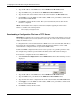
1. Select Upload Configuration from the TFTP Services menu. The following screen is
displayed.
2. Type the IP address of the TFTP server in the TFTP Server IP Address field.
3. Type the TFTP server port number in the TFTP Server Port Number field.
4. Type the complete path and file name of the firmware file for the switch module in the
File Name field.
5. Click Apply to save the TFTP server IP address, TFTP server port number, and file name
into the switch module RAM.
6. Click Start to initiate the file transfer.
IMPORTANT: To save the configuration settings permanently, you must enter them into NVRAM
using the Save Changes option on the Maintenance menu. Refer to the section, “Saving
Changes,” earlier in this chapter. If you do not save configurations to NVRAM, the configurations
you are uploading to a TFTP server will not be saved correctly.
HP ProLiant BL e-Class C-GbE Interconnect Switch Web-based Interface Reference Guide 2-65