
ProLiant BL e-Class C-GbE Interconnect Switch Web-based Interface Reference Guide

Configuring the Switch Modules using the Web-based Interface
Configuring Trap Manager
Traps are messages that alert you of events that occur on the switch module. The events can
be as serious as a reboot (someone accidentally reset the interconnect switch), or less serious
like a configuration file update. The switch module generates traps and sends them to the
network manager (trap recipient).
Trap recipients are special users of the network who are given certain rights and access in
overseeing the maintenance of the network. Trap recipients will receive traps sent from the
switch module, and they may take certain actions to avoid future failure or breakdown of the
network.
You can specify which network managers, may receive traps from the interconnect switch by
entering a list of the IP addresses of authorized network managers. Up to four trap-recipient
IP addresses and four corresponding SNMP community strings can be entered.
To configure the Trap Manager:
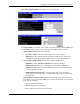
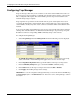
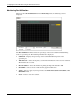
1. Select Trap Manager from the Management menu. The following screen is displayed.
The SNMP Trap Manager Configuration window allows you to set the trap receiving
station, which runs a network management application to receive and store traps.
2. In the Trap Receiving Station field, type the IP address of the trap receiving station.
3. In the Community String field, type a user-defined SNMP community string.
4. In the Status field, set the trap receiving station status to Valid or Invalid.
5. Click Apply after making changes to the settings.
IMPORTANT: To save the configuration settings permanently, you must enter them into NVRAM using
the Save Changes option on the Maintenance menu. Refer to the section, “Saving Changes,” earlier in
this chapter.
2-44 HP ProLiant BL e-Class C-GbE Interconnect Switch Web-based Interface Reference Guide