
ProLiant BL e-Class C-GbE Interconnect Switch Web-based Interface Reference Guide

Configuring the Switch Modules using the Web-based Interface
To configure port mirroring:
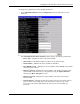
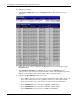
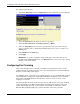
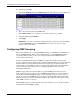
1. Select Port Mirroring from the Configuration menu. The following screen is displayed
2. Select the Source Port from which you want to copy frames.
3. Select the Source Direction, either Ingress, Egress, or Either.
4. Select the Target Port that receives the copies from the source port. This is the port
where you would connect a monitoring/troubleshooting device, such as a sniffer or an
RMON probe.
5. Select Enabled in the Status field.
6. Click Apply.
IMPORTANT: To save the configuration settings permanently, you must enter them into the
NVRAM using the Save Changes option on the Maintenance menu. Refer to the section, “Saving
Changes,” earlier in this chapter.
Configuring Port Trunking
This section describes how to configure port trunking. For information on how to set the
trunk load sharing algorithm parameter, refer to the “Configuring Advanced Switch Module
Features” section earlier in this chapter.
Port trunking allows several ports to be grouped together to act as a single link. This provides
a bandwidth that is a multiple of a single link bandwidth. Port trunking is most commonly
used to link a bandwidth-intensive network device or devices, such as a server, to the
backbone of a network.
The switch module allows the creation of up to six port trunk groups, each group consisting
of up to eight links (ports). HP recommends that the trunk ports be members of the same
VLAN. Only similar type ports can be members of port trunks. A combination of Fast
Ethernet (FE) and Gigabit (GE) ports cannot be members of the same port trunk.
2-14 HP ProLiant BL e-Class C-GbE Interconnect Switch Web-based Interface Reference Guide