
ProLiant BL e-Class C-GbE Interconnect Switch Web-based Interface Reference Guide

Configuring the Switch Modules using the Web-based Interface
To create a new user account:
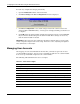
1. Click the small square to the left of the Management folder on the main menu. The
Management menus are displayed.
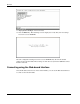
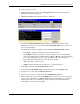
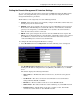
2. Click User Accounts. The following window is displayed.
The User Account Management window displays all current users for the switch
module their current access level. The User Account Modify Table allows you to enter
user account information.
The following information is displayed on the User Account Management window:
— User Name—Displays all current users for the switch module.
— Access Right—Displays the current access level assigned to each corresponding
user. The available options are User, User+, or Root. A Root user has full read/write
access, while a User has read only access. A User+ has the same privileges as a
User, but with the added ability to restart the switch module.
— Add—Click this to add a new user.
— Modify—Click this modify the existing user’s account information.
3. Click Add on the User Account Management window.
4. On the User Account Modify Table, type the user name in the User Name field.
5. Type the user’s password in the New Password field.
6. Type the new password a second time in the Confirm Password field.
7. Click the drop-down arrow in the Access Right field to select the access level. The three
access levels are User, User+, and Root. A Root user has full read/write access, while a
User has read-only access. A User+ has the same privileges as a User, but with the
added ability to restart the switch module.
HP ProLiant BL e-Class C-GbE Interconnect Switch Web-based Interface Reference Guide 2-3