
ProLiant BL e-Class C-GbE Interconnect Switch Web-based Interface Reference Guide

Configuring the Switch Modules using the Web-based Interface
To retain any configuration changes permanently:
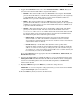
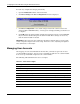
1. Open the Maintenance folder on the main menu.
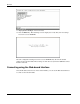
2. Click Save Changes. The Save Configuration window is displayed.
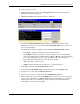
3. Click Save Configuration to save all the changes made in the current session to the
switch module’s NVRAM memory. A message box is displayed telling you that the save
is complete.
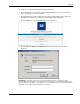
4. Click OK. After the switch module configuration settings have been saved to NVRAM,
they become the default settings for the switch module. These settings are used every
time the switch module is rebooted.
IMPORTANT: After saving your final configuration, HP highly recommends that you save the switch
module configuration image to TFTP server storage. Refer to the section, “Uploading a Configuration
File to TFTP Server,” in this chapter.
Managing User Accounts
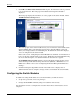
After logging on to the switch module for the first time, you must set up at least one user
account with Root privileges. You can set up a maximum of eight users on a switch module.
You can set up a maximum of eight users on a switch module.
The following table summarizes the user access rights.
Table 2-1: User Access Rights
Privilege Root User+ User
Configuration Yes Read-only Read-only
Network Monitoring Yes Read-only Read-only
Community Strings and Trap Stations Yes Read-only Read-only
Update Firmware and Configuration Files Yes No No
System Utilities Yes Ping-only Ping-only
Factory Reset Yes No No
Reboot Switch Yes Yes No
Add/Update/Delete User Accounts Yes No No
View User Accounts Yes No No
2-2 HP ProLiant BL e-Class C-GbE Interconnect Switch Web-based Interface Reference Guide