
WESM zl 12 and 48 Radio-Port License Installation Guide 2007-07


8
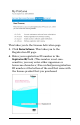
5. Click Next. This enters the registration ID number
and takes you to the Hardware ID page.
Now you will leave My ProCurve and go to the Web
browser interface for the next few steps of the
procedure.
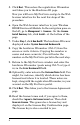
6. Open the Web browser interface to your Wireless
EDGE Services zl Module. In the navigation pane on
the left, go to Management > Licenses. On the License-
Install Summary tab, click Install… at the bottom of the
page.
7. Under Step 1, click Gen-Hw-ID. The hardware ID is now
displayed under System Generated Hardware Id.
8. Copy the hardware ID number (Ctrl-C) from the
screen or write it down. (Copying the number is
easier and more accurate.) You will enter the
number on the My ProCurve portal in the next step.
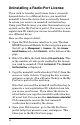
9. Return to the My ProCurve window and enter the
hardware ID number (paste using Ctrl-V or type it
in) in the Enter Hardware ID field.
10. Optionally, enter notes in the Customer Notes field. You
might, for instance, identify which device has been
licensed and where it is located. These notes are
kept, along with the registration ID number, in your
account on the My ProCurve portal.
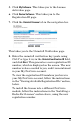
11. Click Next. This takes you to the License Agreement
page.
12. Read the license terms and, if you agree to them,
check the I agree to the license terms box. Then click
Generate License. This generates a license key and
displays it on the License Key Confirmation page.
The license key is also e-mailed to you.