
HP Switch Services Modules - HP SECBLADEII-CMW520-F3171P05 Release Notes

HP SECBLADEII-CMW520-F3171P05
Release Notes
Hewlett-Packard Development Company, L.P.
48
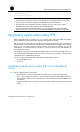
NOTE:
• When you back up an application file, if the file name already exists on the FTP server,
the existing file will directly be overwritten.
• You can back up configuration files in the way you back up application files.
The SecBlade card serving as the FTP server and the PC serving as the FTP client
Step1 Set up an upgrade environment.
Connect the PC to an Ethernet interface (for example, GigabitEthernet 0/1) on the
SecBlade card and ensure the connectivity between them.
• Use a crossover Ethernet cable to connect Ethernet interface GigabitEthernet 0/1 on
the SecBlade card to the PC.
• Configure IP addresses for the SecBlade card and the PC and ensure that they are on
the same network segment. In this example, the IP address of Ethernet interface
GigabitEthernet 0/1 on the SecBlade card is 192.168.80.10 and that of the PC is
192.168.80.200.
• Use the ping command to check the connectivity between them.
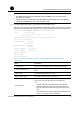
Step2 Enable the FTP service.
# Enable the FTP server.
[HP] ftp server enable
# Configure an FTP username and password.
[HP] local-user guest
[HP-luser- guest] service-type ftp
[HP-luser- guest] password simple 123456
[HP-luser-guest] level 3
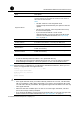
NOTE:
• You can use the FTP service after you have configured authorization and
authentication on the FTP server. Multiple clients can simultaneously access the FTP
server.
A remote FTP client sends a request to the FTP server. The FTP server executes an
action accordingly and returns the execution result to the FTP client.
• After you have configured authentication and authorization on the FTP server, you
need to set the user level to 3. Otherwise, when you use the backup files to restore
those on the SecBlade card, “You have no rights to store files” will be prompted.
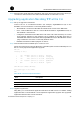
Step3 Enable the FTP client program on the PC.
In the following example, Windows XP’s built-in FTP client program is illustrated.
Enter ftp in the DOS window.
C:\Documents and Settings\Administrator>ftp
ftp>
ftp> open 192.168.80.10
Connected to 192.168.80.10.
220 FTP service ready.
User (192.168.80.10:(none)): guest