
R2511-HP MSR Router Series Fundamentals Configuration Guide(V5)



88
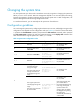
keywords and the delimiters cannot exceed 510 characters. In this mode, do not press Enter
before you input the end delimiter. For example, you can configure the shell banner "Have a nice
day." as follows:
<System> system-view
[System] header shell %Have a nice day.%
• Multiple-line input
Input message text in multiple lines. With this method, the message text can be up to 2000
characters. Use one of the following methods to implement multi-line input mode:
{ Method 1—Press Enter after the final command keyword. At the system prompt, enter the
banner message and end with the delimiter character %. For example, you can configure the
banner "Have a nice day. Please input the password." as follows:
<System> system-view
[System] header shell
Please input banner content, and quit with the character '%'.
Have a nice day.
Please input the password.%
{ Method 2—After you type the final command keyword, type any single character as the start
delimiter for the banner and press Enter. At the system prompt, type the banner and end the
final line with a delimiter that is the same as the start delimiter. For example, you can configure
the banner "Have a nice day. Please input the password." as follows:
<System> system-view
[System] header shell A
Please input banner content, and quit with the character 'A'.
Have a nice day.
Please input the password.A
{ Method 3—After you type the final keyword, type the start delimiter and part of the banner and
press Enter. At the system prompt, enter the rest of the banner and end the final line with a
delimiter that is the same as the start delimiter. For example, you can configure the banner
"Have a nice day. Please input the password." as follows:
<System> system-view
[System] header shell AHave a nice day.
Please input banner content, and quit with the character 'A'.
Please input the password.A
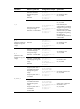
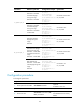
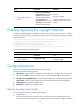
Configuration procedure
To configure banners:
Ste
p
Command
Remarks
1. Enter system view.
system-view N/A
2. Configure the incoming
banner.
header incoming text Optional.
3. Configure the login banner.
header login text Optional.
4. Configure the legal banner.
header legal text Optional.
5. Configure the shell banner.
header shell text Optional.
6. Configure the MOTD banner.
header motd text Optional.