
HP UPS Management Module Installation and Configuration Guidelines for VMware ESX

9
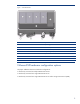
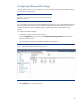
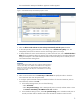
The Virtual Machine Startup and Shutdown properties window appears.
Figure 6. Virtual Machine Startup and Shutdown properties window
3. Select the Allow virtual machines to start and stop automatically with the system checkbox.
4. To have the operating system start after a brief delay, enter a Default Startup Delay time. The
startup delay allows time for VMware Tools or the booting system to run scripts.
5. To delay shutdown for each virtual machine by a certain amount of time, enter a Default Shutdown
Delay value. The shutdown delay only applies if the virtual machine does not shut down before the
delay period elapses. If the virtual machine shuts down before the delay time is reached, the next
virtual machine starts shutting down.
IMPORTANT:
Careful consideration should be used when configuring shutdown delays in
VMware. These delays are in addition to the shutdown time configured in
HPMM. For simplicity, HP recommends that the VMware shutdown delay
be set to zero. You can use the delay time on the HPMM menu to manage
delayed shutdown time.
6. Select a virtual machine and click Move Up and Move Down to specify the order in which the
virtual machines start when the system starts.
7. To configure specific automatic startup and shutdown behavior for the virtual machines, select a
virtual machine, and then click Edit.
a. In the Startup Settings section, do one of the following:
– Select Use default.
– Select Use specified settings, enter a Startup Delay time in seconds, and then select or clear
the Continue immediately if the VMware Tools
start checkbox.
b. In the Shutdown Settings section, select Use specified settings, enter a Shutdown Delay time in
seconds, and then select a shutdown action from the Perform shutdown action list menu.