
Use Guide - 5th Chapter: Problem Solving


Chapter 5 Problem solving 135
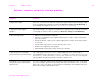
Correcting output quality problems
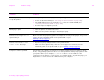
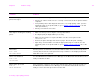
Auto setup did not automatically
set up the printer.
z Set up the printer manually by selecting Configure.
z Select an alternate PPD (See “Selecting an alternate PPD” on page 149).
z The PPD might have been renamed. If so, select the renamed PPD (See
“Selecting an alternate PPD” on page 149).
z A network queue might be present.
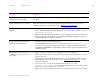
Blank pages print.
z Turn the printer off and then back on.
z Make sure the printer cartridge is installed properly.
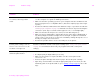
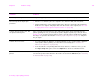
Cannot access Tray 2 or 3, or
optional Tray 4.
Make sure that the paper tray guides are adjusted correctly for the paper size you are
using. (See the introduce guide on the product CD, or go to
www.hp.com/cposupport/
.)
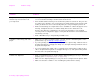
Cannot clear MANUALLY FEED
[TYPE] [SIZE] message.
z A previous print job might still be in the printer buffer.
z Make sure that optional Tray 1 has the correct paper size loaded. (See the
introduce guide on the product CD, or go to www.hp.com/cposupport/
.)
Computer software problem. Check that your computer is working correctly by printing from a program you know
works, or by printing a plain text file to see if the problem is with your program or with
your printer driver. (For example, C:\dir>LPTn where n is the number of the
computer port the printer is connected to, for example LPT1.) To print the page, you
might have to send a form feed command from your computer.
Situation Solution